---
title: POS Round Up
description: imrchnt knowledge base
---
[Skip to content](https://help.imrchnt.com/s/17626/a/819074-pos-round-up#main-content)
English
Show submenu for translations

Open main navigation
Close main navigation
- English
Show submenu for translations
- Contact us
Contact us
How can we help you?
- There are no suggestions because the search field is empty.
1. [imrchnt knowledge base](https://help.imrchnt.com/?hsLang=en)
2. [Legacy imrchnt](https://help.imrchnt.com/legacy-imrchnt?hsLang=en)
# POS Round Up
## Activation
In order to activate and set up the POS Round Up program you have to check *Use Donation Offer* in POS Options Tab in Store Properties and set up the appropriate Accounting parameters
To begin go to the Menu Bar
*Tools \> Parameters \> Store Number*
1\. Double Click on the Store you want to Activate
2\. Go to the POS Options Tab
- Check the *User Donation Offer* box
3\. In *Donation Service* click on the binoculars to bring the Find Service window
- Double Click on POS Round Up and it will be brought back into the *Donation Service* field
- **If you are setting POS Round Up for the first time advance to [New Service Set Up](https://help.imrchnt.com/s/17626/a/819074-pos-round-up#new-service-set-up)**
4\. Click on the ***Save*** button in the Task Bar.
You're done!
## New Service Set Up
To **Add a New Service** in the Find Service window:
5\. Click on ***New*** in the Task Bar
- The Service Properties window appears with all fields blank
6\. Enter in the following information:
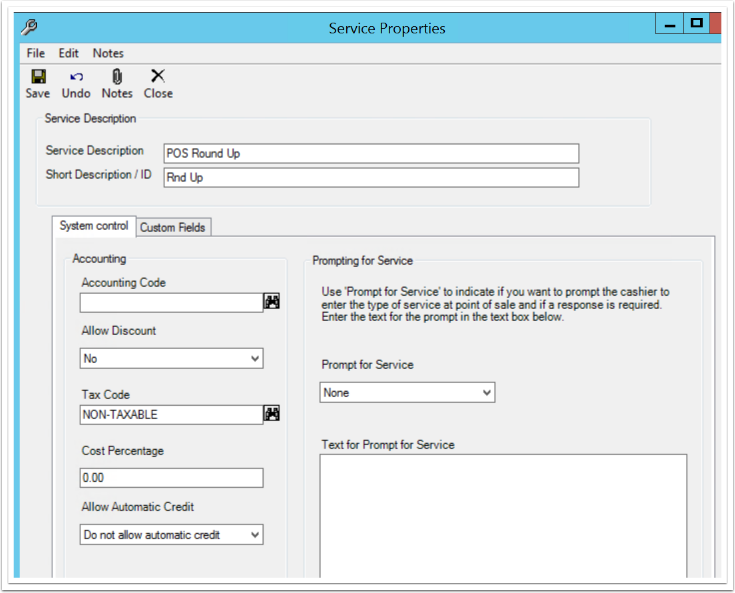
- In the Service Description section
- **Service Description** = POS Round Up
- **Short Description / ID** = RND UP
- In the Accounting section of the System Control Tab
- **Accounting Code** = You will need to create a New Accounting Code, keep reading the next section
- **Allow Discount** = No
- **Tax Code** = NON-TAXABLE
- **Cost Percentage** = 0.00
- **Allow Automatic Credit** = Do Not Allow Automatic Credit
- In the Prompting for Service Section
- **Prompt for Service** = None
- Leave the **Text for Prompt for Service** box blank
## New Accounting Code Set Up
This section takes you down a bit of a rabbit hole, so hold on.
7\. Inside the Service Properties Screen next to the **Accounting Code** field
- Click on the binoculars
This will take you into the Find Parameter screen
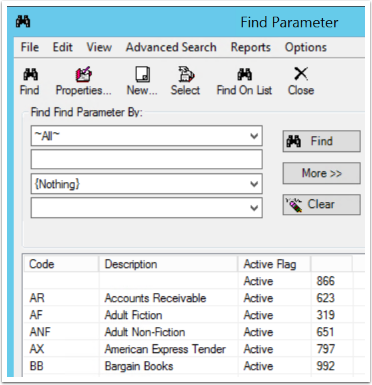
8\. You are now going to set up a new Accounting Category for your Charitable Contribution Liability
- Click on the ***New*** button on the task bar
This takes you into the Accounting Category screen
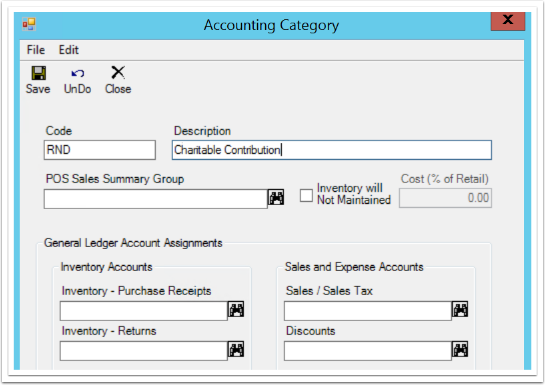
9\. Enter in the following:
- Code = RND
- Description = Charitable Contribution
10\. Click on the binoculars next to the Sales / Sales Tax field
- This will take you to another Find Parameter screen
11\. You are now going to set up a new parameter
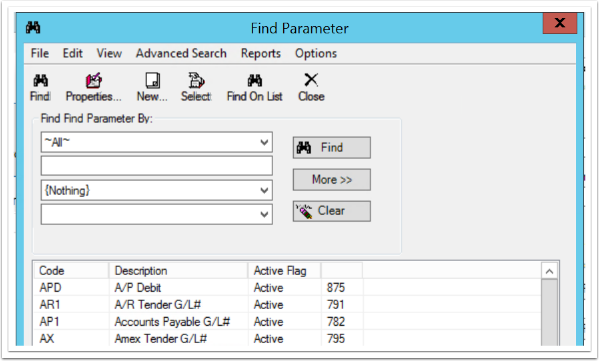
12\. Click on the ***New*** button in the Task Bar
The Properties screen comes up
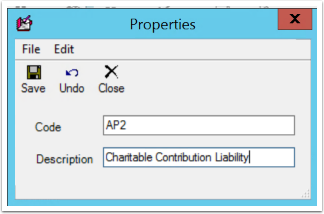
13\. Fill in:
- **Code =** AP2 (this is an accounts payable liability)
- **Description =** Charitable Contribution Liability
14\. Click on the ***Close*** button in the Task Bar
- You will be prompted to Save
- Select *Yes*
15\. You are brought back into the Find Parameter screen
- Double-click on AP2
16\. You are brought back into the Accounting Category screen
- The Description of your new parameter is now in the Sales / Sales Tax field
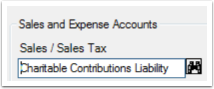
- Click on the ***Close*** button
- You are prompted to Save
- Select *Yes*
17\. You are brought back into the other Find Parameter screen
- Double-click on the "RND | Charitable Contribution" entry
18\. You are now brought back into the Service Properties screen
- The description Charitable Contribution is in the Accounting Code field
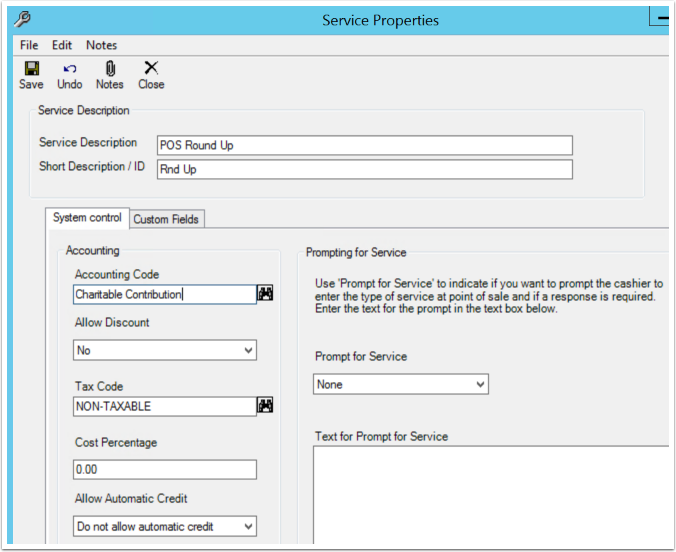
Your service properties screen should look as it does above
19\. If so click on the ***Close*** button in the Task Bar
- You will be prompted to Save
- Select *Yes*
20\. You are brought back into the Find Service Screen
- Double-Click on the "POS Round Up" Entry
21\. You are brought back to where we began.
- The Short Description "Rnd Up" is now in the ***Donation Service*** field
22\. Click on the ***Close*** button in the Task Bar
- You are prompted to Save
- Select *Yes*
23\. Now you will want to go into your accounting package and map the new Accounting Code to a G/L code for your new liability.
## ON/OFF per Register Option
You have the option of turning ON/OFF POS Round Up for each Register in your system.
Go To:
Tools \> Parameters \> Register
- Double-Click on the Register in the Find Register window
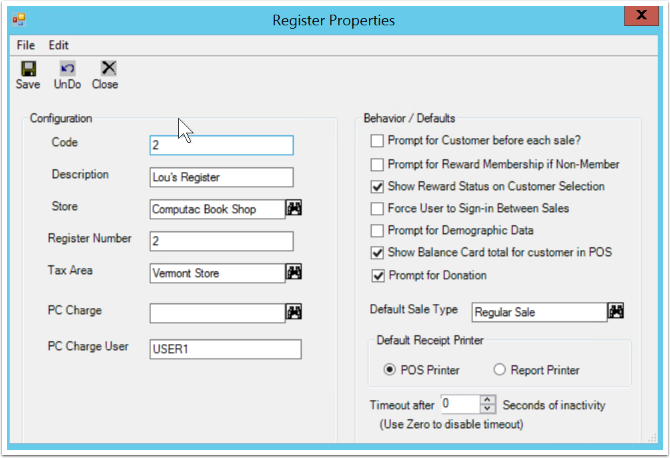
- The Register Properties window pops up.
- Check the box for *Prompt for Donation*
- Click on the ***Close*** button in the Task Bar
- You will be prompted to Save
- Select *Yes*
- The register selected will now prompt for POS Round Up
Go into each Register and turn on or off dependent on the Register
## You're Done!
**WELL, IF YOU HAVE ONE STORE YOU'RE DONE.**
If you have multiple stores that you want to feed into one Accounting Code. You will need to repeat steps 1 - 4
If you want to have your other stores enter donations into another Accounting Code (in order to keep accounts separate) you will have to repeat steps 1-23 for each store.
- [FAQs](https://help.imrchnt.com/faqs?hsLang=en#main-content)
- [Reports](https://help.imrchnt.com/faqs?hsLang=en#reports)
- [App](https://help.imrchnt.com/faqs?hsLang=en#app)
- [Getting started](https://help.imrchnt.com/getting-started?hsLang=en#main-content)
- [Store](https://help.imrchnt.com/getting-started?hsLang=en#store)
- [Card Processing](https://help.imrchnt.com/getting-started?hsLang=en#card-processing)
- [Imports](https://help.imrchnt.com/getting-started?hsLang=en#imports)
- [Exports](https://help.imrchnt.com/getting-started?hsLang=en#exports)
- [Troubleshooting](https://help.imrchnt.com/troubleshooting?hsLang=en#main-content)
- [Card Reader](https://help.imrchnt.com/troubleshooting?hsLang=en#card-reader)
- [Web App](https://help.imrchnt.com/troubleshooting?hsLang=en#web-app)
- [General](https://help.imrchnt.com/general?hsLang=en#main-content)
- [Users](https://help.imrchnt.com/general?hsLang=en#users)
- [Point of Sale](https://help.imrchnt.com/general?hsLang=en#point-of-sale)
- [Release Notes](https://help.imrchnt.com/general?hsLang=en#release-notes)
- [Legacy imrchnt](https://help.imrchnt.com/legacy-imrchnt?hsLang=en#main-content)
- [Releases](https://help.imrchnt.com/legacy-imrchnt?hsLang=en#releases)
- [Labels](https://help.imrchnt.com/legacy-imrchnt?hsLang=en#labels)
- [Gift Cards](https://help.imrchnt.com/legacy-imrchnt?hsLang=en#gift-cards)
- [Imports](https://help.imrchnt.com/legacy-imrchnt?hsLang=en#imports)
- [Credit Cards](https://help.imrchnt.com/legacy-imrchnt?hsLang=en#credit-cards)
- [Properties](https://help.imrchnt.com/legacy-imrchnt?hsLang=en#properties)
- [Internal](https://help.imrchnt.com/internal?hsLang=en#main-content)
- [AWS](https://help.imrchnt.com/internal?hsLang=en#aws)
- [iOS](https://help.imrchnt.com/internal?hsLang=en#ios)
- [Card Readers](https://help.imrchnt.com/card-readers?hsLang=en#main-content)
- [Tips](https://help.imrchnt.com/card-readers?hsLang=en#tips)
- [Maintenance](https://help.imrchnt.com/card-readers?hsLang=en#maintenance)
- [Newsletter](https://help.imrchnt.com/newsletter?hsLang=en#main-content)
- [2025](https://help.imrchnt.com/newsletter?hsLang=en#2025)
- [2026](https://help.imrchnt.com/newsletter?hsLang=en#2026)
- [Demo](https://help.imrchnt.com/demo?hsLang=en#main-content)
- [Card Reader](https://help.imrchnt.com/demo?hsLang=en#card-reader)
- [Releases](https://help.imrchnt.com/releases?hsLang=en)
[](https://help.imrchnt.com/?hsLang=en)
[mailto:email@email.com](mailto:email@email.com)
Copyright © 2026, Computac LLC