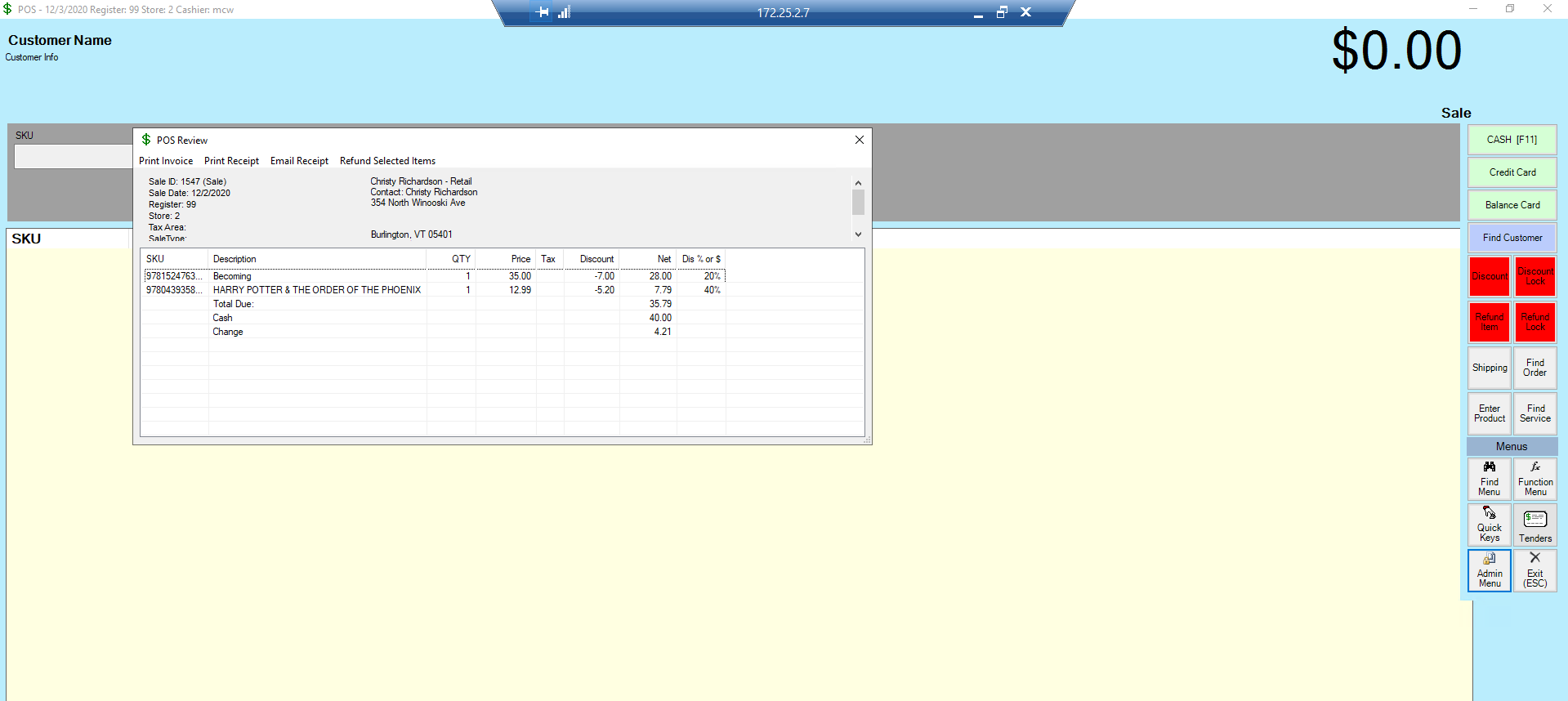
To void a sale that has already been tendered:
- Click on the Admin. Menu at the bottom right of the POS screen.
- A small box appears.
- Select Void
- Press Enter.
- If security has been activated for this function, you will be prompted to enter the appropriate password before proceeding.
- Another box appears prompting you to enter or scan the Sale ID for the sale you want to void.
- If you cannot scan the Sale ID number (on the receipt) and you cannot key in the number, you can look it up.
- To look a Sale ID number up
- Click on the down arrow at the right of the field inside the Void box.
- The Find Sale window pops up.
- Set your search criteria in the Find Sale By field
- Click on the Find button.
- From the list that appears at the bottom of the Find Sale window
- Select the matching Sale ID number by double clicking on it
- You will be returned to the POS screen, and the Sale ID number will display in the field within the Void box.
- At this point, you must decide whether to leave the Resellbox unchecked or to check it.
- If you leave it unchecked and press Enter,
- a little message box displays, asking if you want to void the sale.
- If you select Yes
- The sale is voided.
- If you select No
- The sale is not voided.
- Either way, upon your selection, the information for that Sale ID disappears from the screen.
- If you check the box and press Enter,
- the same little message box displays, asking if you want to void the sale.
- If you select Yes
- the sale is voided but the line items for that sale remain on the POS screen.
- From here, you can tender the sale again or add to it if necessary.
- An example of why you would use the resell option is if you did not apply a discount but neither you nor the customer noticed this until after tendering.
- Selecting resell allows you the luxury of not having to reenter the entire sale after voiding it.
- If you select Noat the prompt
- The sale is not voided.
- If you leave it unchecked and press Enter,
Troubleshooting Tips
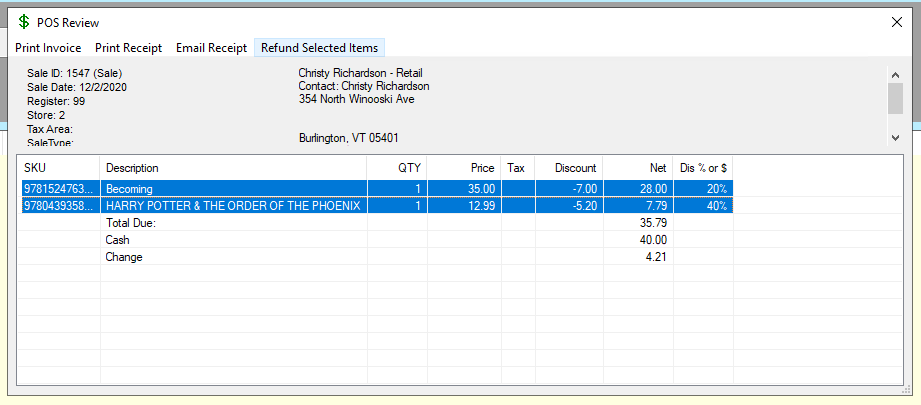
You can only void a sale on the same day, same shift. After that it must be reversed by doing a refund of the sale. So, next day (or longer) scan the barcode on the sales receipt > highlight ALL the products/services,
At the top of the screen select 'refund selected items'
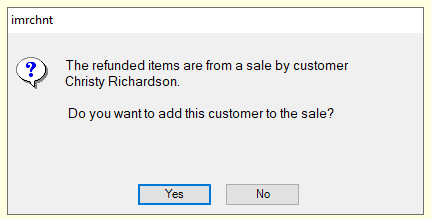
If a customer was involved in the sale the system will prompt the user to bring the customer back in, say yes.
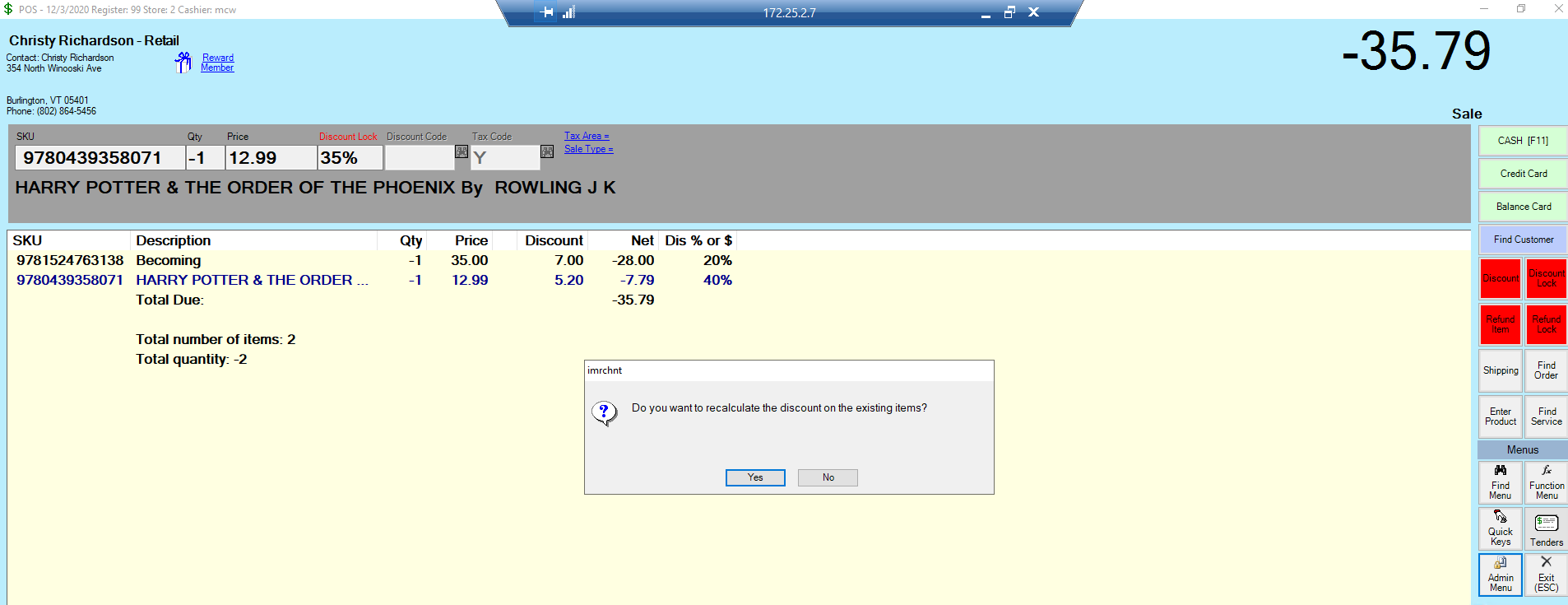
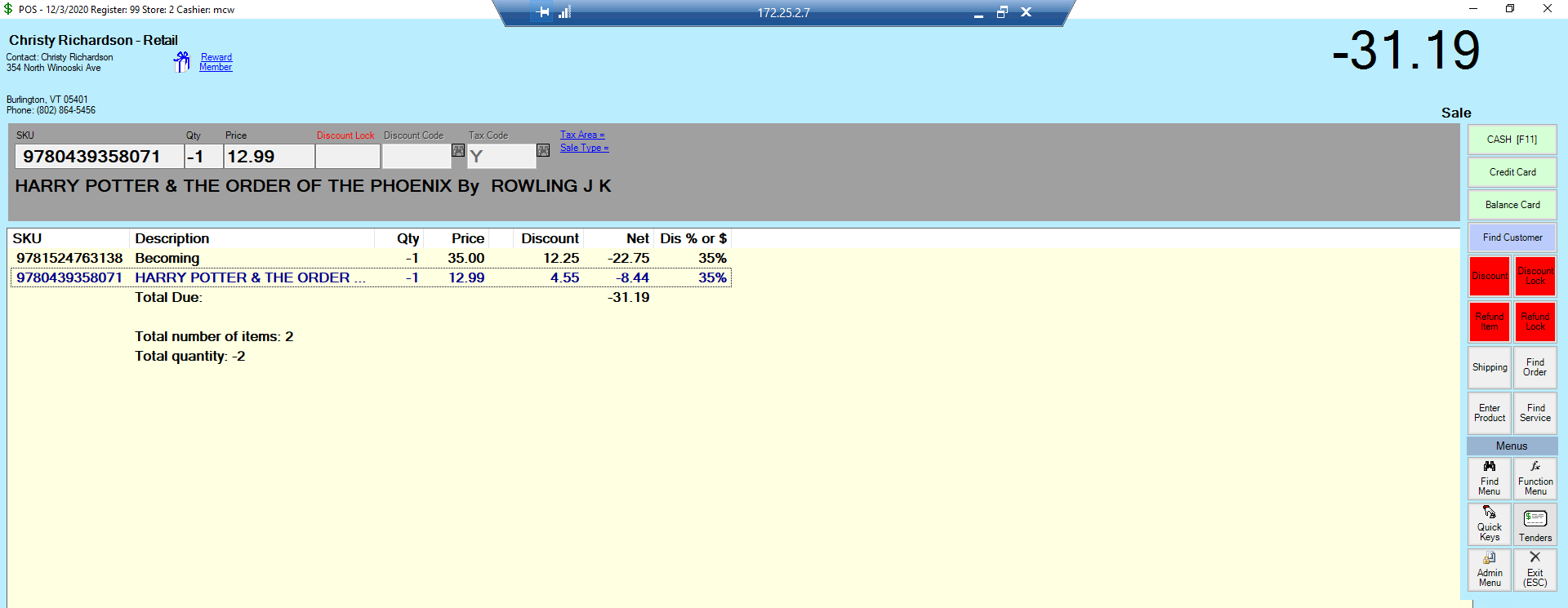
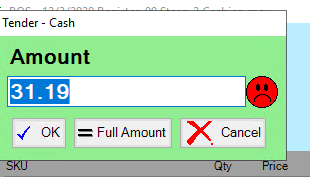
select cash (or other tender)