---
title: Configure an Epson Printer to Use its Internal Barcode Font to Print POS barcodes
description: imrchnt knowledge base
---
[Skip to content](https://help.imrchnt.com/s/17626/a/722951-configure-an-epson-printer-to-use-its-internal-barcode-font-to-print-pos-barcodes#main-content)
English
Show submenu for translations

Open main navigation
Close main navigation
- English
Show submenu for translations
- Contact us
Contact us
How can we help you?
- There are no suggestions because the search field is empty.
1. [imrchnt knowledge base](https://help.imrchnt.com/?hsLang=en)
2. [Legacy imrchnt](https://help.imrchnt.com/legacy-imrchnt?hsLang=en)
# Configure an Epson Printer to Use its Internal Barcode Font to Print POS barcodes
The Epson TM series printers have an internal barcode font that can be used if the printer is connected to the POS as a native Windows printer.
The internal barcode font is designed for the specific printer and should eliminate issues caused by low printer resolution.
The printer must be added to the system as a native windows printer using the Epson APD printer drivers. Follow these steps to configure the printer on each POS unit:
Exit from all remote desktop connections and \[i\]merchant programs.
Click on the **Start** button.
Select Devices and Printers.
Locate the Epson receipt printer and right click on the icon.
Select Printing Preferences from the menu.
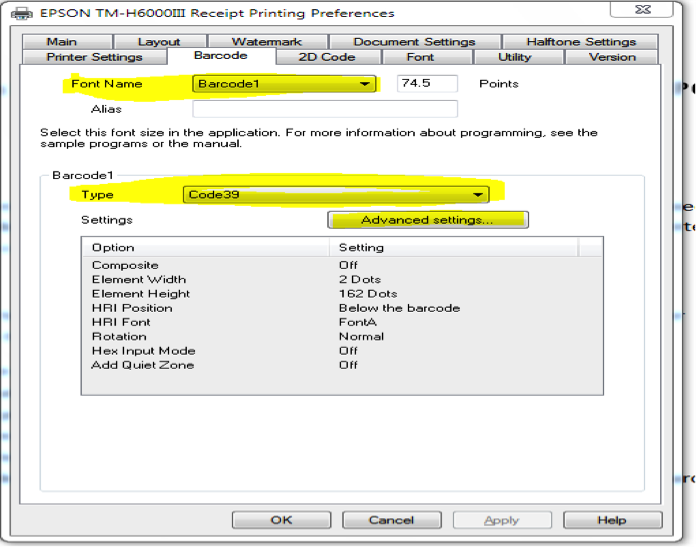
Click on the Barcode Tab. If this tab is missing, the print driver does not support native barcodes.
Change the font to Barcode1 and the Barcode1 Type to Code39 as shown in the screen below
Press the Advanced Settings button.
Change the screen to match the highlighted settings below:
Element Width = 2
HRI Position = Below the barcode
HRI Font = FontA
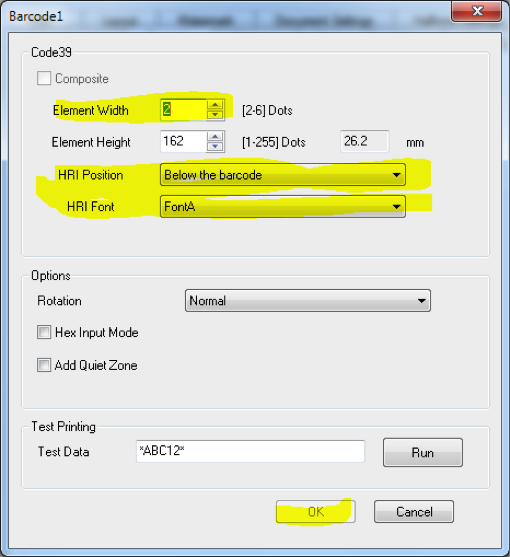
Press **OK** to save changes and return to the Printing Preferences screen.
Click on the Apply button on the bottom of the form.
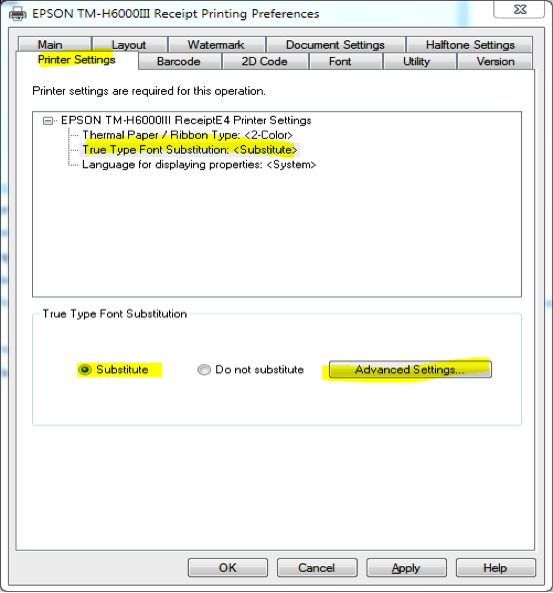
Select the Printer Settings Tab.
Change the form to match the highlighted sections below:
- Expand the printer setting if they are not already expanded.
- Click on the True Type Font Substitution setting. This will display information on the bottom of the screen.
- Click on the Substitute radio button. This will enable the Advanced Settings button.
- Click on the Advanced Settings button.
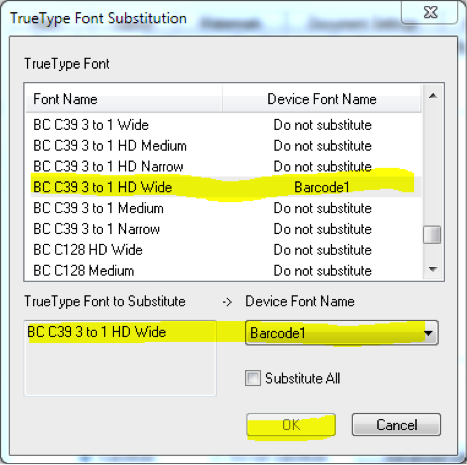
Change the form to match the highlighted sections below:
- Scroll down the font selection list to find the BC C39 3 to 1 HD Wide
- Change the Device Font Name to Barcode1
- Press the OK button
Press the Apply button on the bottom of the Printing preferences form.
Press the OK button.
Launch POS and print a test receipt. The barcode on the bottom of the receipt will be slightly different from the one created by \[i\]merchant.
Test how the barcode scans.
If the barcode or scanning is not satisfactory, follow the Disable Font Substitution steps below:
## Disable Font Substitution
Exit from all remote desktop connections and \[i\]merchant programs.
Click on the **Start** button.
Select Devices and Printers.
Locate the Epson receipt printer and right click on the icon.
Select Printing Preferences from the menu.
Select the Printer Settings Tab.
Change the form to match the highlighted sections below:
Expand the printer setting if they are not already expanded.
Click on the True Type Font Substitution setting.
Click on the Do Not Substitute radio button.
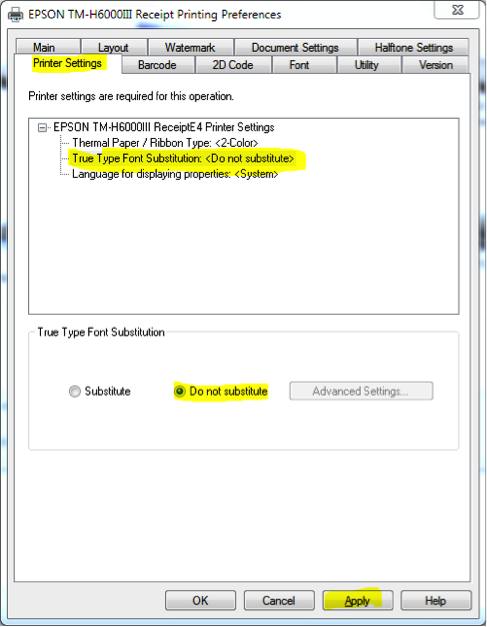
Press the **Apply** button on the bottom of the Printing preferences form.
Press the **OK** button.
Launch POS and print a test receipt.
- [FAQs](https://help.imrchnt.com/faqs?hsLang=en#main-content)
- [Reports](https://help.imrchnt.com/faqs?hsLang=en#reports)
- [App](https://help.imrchnt.com/faqs?hsLang=en#app)
- [Getting started](https://help.imrchnt.com/getting-started?hsLang=en#main-content)
- [Store](https://help.imrchnt.com/getting-started?hsLang=en#store)
- [Card Processing](https://help.imrchnt.com/getting-started?hsLang=en#card-processing)
- [Imports](https://help.imrchnt.com/getting-started?hsLang=en#imports)
- [Exports](https://help.imrchnt.com/getting-started?hsLang=en#exports)
- [Troubleshooting](https://help.imrchnt.com/troubleshooting?hsLang=en#main-content)
- [Card Reader](https://help.imrchnt.com/troubleshooting?hsLang=en#card-reader)
- [Web App](https://help.imrchnt.com/troubleshooting?hsLang=en#web-app)
- [General](https://help.imrchnt.com/general?hsLang=en#main-content)
- [Users](https://help.imrchnt.com/general?hsLang=en#users)
- [Point of Sale](https://help.imrchnt.com/general?hsLang=en#point-of-sale)
- [Release Notes](https://help.imrchnt.com/general?hsLang=en#release-notes)
- [Legacy imrchnt](https://help.imrchnt.com/legacy-imrchnt?hsLang=en#main-content)
- [Releases](https://help.imrchnt.com/legacy-imrchnt?hsLang=en#releases)
- [Labels](https://help.imrchnt.com/legacy-imrchnt?hsLang=en#labels)
- [Gift Cards](https://help.imrchnt.com/legacy-imrchnt?hsLang=en#gift-cards)
- [Imports](https://help.imrchnt.com/legacy-imrchnt?hsLang=en#imports)
- [Credit Cards](https://help.imrchnt.com/legacy-imrchnt?hsLang=en#credit-cards)
- [Properties](https://help.imrchnt.com/legacy-imrchnt?hsLang=en#properties)
- [Internal](https://help.imrchnt.com/internal?hsLang=en#main-content)
- [AWS](https://help.imrchnt.com/internal?hsLang=en#aws)
- [iOS](https://help.imrchnt.com/internal?hsLang=en#ios)
- [Card Readers](https://help.imrchnt.com/card-readers?hsLang=en#main-content)
- [Tips](https://help.imrchnt.com/card-readers?hsLang=en#tips)
- [Maintenance](https://help.imrchnt.com/card-readers?hsLang=en#maintenance)
- [Newsletter](https://help.imrchnt.com/newsletter?hsLang=en#main-content)
- [2025](https://help.imrchnt.com/newsletter?hsLang=en#2025)
- [2026](https://help.imrchnt.com/newsletter?hsLang=en#2026)
- [Demo](https://help.imrchnt.com/demo?hsLang=en#main-content)
- [Card Reader](https://help.imrchnt.com/demo?hsLang=en#card-reader)
- [Releases](https://help.imrchnt.com/releases?hsLang=en)
[](https://help.imrchnt.com/?hsLang=en)
[mailto:email@email.com](mailto:email@email.com)
Copyright © 2026, Computac LLC