---
title: Labels
description: Article about labels
---
[Skip to content](https://help.imrchnt.com/s/17626/a/722411-labels#main-content)
English
Show submenu for translations

Open main navigation
Close main navigation
- English
Show submenu for translations
- Contact us
Contact us
How can we help you?
- There are no suggestions because the search field is empty.
1. [imrchnt knowledge base](https://help.imrchnt.com/?hsLang=en)
2. [Legacy imrchnt](https://help.imrchnt.com/legacy-imrchnt?hsLang=en)
3. [Labels](https://help.imrchnt.com/legacy-imrchnt?hsLang=en#labels)
# Labels
Our Label Designer program, allows you to design as many label templates as needed, both for Product labels and Customer Order labels.
To access the Label Designer:
*Tools \>Administration \>Designers* from the Menu Bar
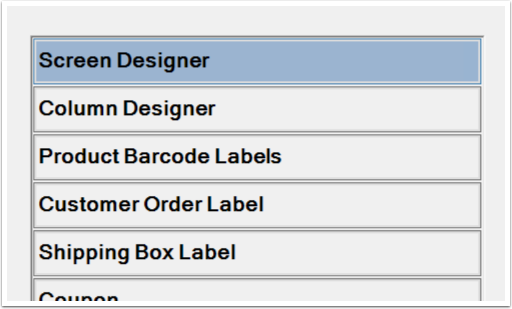
Select the Label Designer you want **Product Barcode Label**, **Customer Order Label**, or **Shipping Box Label**.
## Product Barcode Label
- Select the Product Barcode Labels
- A new window appears with the fields **Label Name** and **Label Stock**.
- If you're creating a **New** label, you can ignore these fields right now.
To Create a New Label:
- Click on the ***New*** button
- **Use Default Design:**
- Checked = Yes
- Unchecked = No, and you will have to create your own
- Name the label, and set its label stock.
- **Label stock** is the size and/or color of the stock used for the label (i.e., 1.5 x 2.5 inches, yellow color, etc.)
- Label stock is an informational field
- Once you have named the new label and chosen its label stock, click on the ***Apply*** button
- Label Designer Screen will open and the name of the label template is saved.
The Label Designer window and the Palette appear.
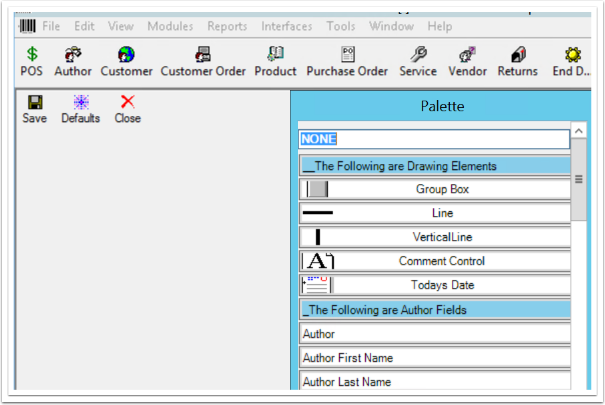
The Palette can be dragged to anywhere on your screen.
To Design a Label:
- Drag and Drop fields from the Palette onto the Label Designer Window
- To Delete a Field right click on it and select Delete
- You can also change the font and display options with a right click
- When you design the label, be aware of the dimensions of the label stock.
- You need to work within the parameters of the stock size.
- Once you have the label designed the way you want it, click on the ***Save*** button in the Task Bar
- Then **X** out of the window.
- If you click on **Close**, you will be prompted to Apply Changes
- Select **Yes** or **No**
On the Task Bar you will also see the ***Defaults*** button.
- If you would like to display the names of the fields you place in the Designer window (from the Palette), on the label, this is the tool to use.
- e.g. you choose Retail Price from the Palette and you want the label to say the words "Retail Price" next to the field use the Defaults button.
- When you click on the ***Defaults*** button, the Display Options window appears
- You can Choose the Placement of the object
- **Type of Label to Create: **allows you to choose the placement of the field label:
- Create Label on the Left:

- Create Label on the Top:
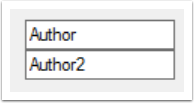
- Create Label on the Right:
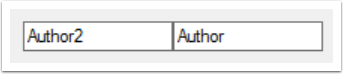
- Do Not Create Label:
Whatever you choose here becomes the default for all Palette selections.
If you want to change this for a specific field in the Designer window
- i.e. go against the Designer window Default selection
- Right-click on the field
- Choose Display from the menu
- This will call up the Display Options window as well, the window will only apply to the Specific field you right-clicked.
The Display Options window for the Specific field provides two more options in the** Choose Description Display** portion
- **Display Code **or **Display Description**
- You can't display both
After closing out of the Designer window, you will be returned to the Label Design window.
Here, the Label Name field and Label Stock field will be filled in with what you selected earlier.
## Accessing an Existing Label
From the Label Design window
- Select the label you want in the **Label Name** field.
- Click on the ***Design*** button in Task Bar.
- The Label Designer window will open for the selected label
- If you want to redesign it using the Palette, you can.
If you want to change the Label Stock code while in the Designer window for the selected label
- Select *Edit \>Change Stock* from the Menu Bar
- The Label Stock window opens, and from there you can change the Label Stock code.
From Edit you can also Delete the selected Label
- Go to Edit \> Delete you will be taken back to the Label Design window and the label will be Deleted from the system
- [FAQs](https://help.imrchnt.com/faqs?hsLang=en#main-content)
- [Reports](https://help.imrchnt.com/faqs?hsLang=en#reports)
- [App](https://help.imrchnt.com/faqs?hsLang=en#app)
- [Getting started](https://help.imrchnt.com/getting-started?hsLang=en#main-content)
- [Store](https://help.imrchnt.com/getting-started?hsLang=en#store)
- [Card Processing](https://help.imrchnt.com/getting-started?hsLang=en#card-processing)
- [Imports](https://help.imrchnt.com/getting-started?hsLang=en#imports)
- [Exports](https://help.imrchnt.com/getting-started?hsLang=en#exports)
- [Troubleshooting](https://help.imrchnt.com/troubleshooting?hsLang=en#main-content)
- [Card Reader](https://help.imrchnt.com/troubleshooting?hsLang=en#card-reader)
- [Web App](https://help.imrchnt.com/troubleshooting?hsLang=en#web-app)
- [General](https://help.imrchnt.com/general?hsLang=en#main-content)
- [Users](https://help.imrchnt.com/general?hsLang=en#users)
- [Point of Sale](https://help.imrchnt.com/general?hsLang=en#point-of-sale)
- [Release Notes](https://help.imrchnt.com/general?hsLang=en#release-notes)
- [Legacy imrchnt](https://help.imrchnt.com/legacy-imrchnt?hsLang=en#main-content)
- [Releases](https://help.imrchnt.com/legacy-imrchnt?hsLang=en#releases)
- [Labels](https://help.imrchnt.com/legacy-imrchnt?hsLang=en#labels)
- [Gift Cards](https://help.imrchnt.com/legacy-imrchnt?hsLang=en#gift-cards)
- [Imports](https://help.imrchnt.com/legacy-imrchnt?hsLang=en#imports)
- [Credit Cards](https://help.imrchnt.com/legacy-imrchnt?hsLang=en#credit-cards)
- [Properties](https://help.imrchnt.com/legacy-imrchnt?hsLang=en#properties)
- [Internal](https://help.imrchnt.com/internal?hsLang=en#main-content)
- [AWS](https://help.imrchnt.com/internal?hsLang=en#aws)
- [iOS](https://help.imrchnt.com/internal?hsLang=en#ios)
- [Card Readers](https://help.imrchnt.com/card-readers?hsLang=en#main-content)
- [Tips](https://help.imrchnt.com/card-readers?hsLang=en#tips)
- [Maintenance](https://help.imrchnt.com/card-readers?hsLang=en#maintenance)
- [Newsletter](https://help.imrchnt.com/newsletter?hsLang=en#main-content)
- [2025](https://help.imrchnt.com/newsletter?hsLang=en#2025)
- [2026](https://help.imrchnt.com/newsletter?hsLang=en#2026)
- [Demo](https://help.imrchnt.com/demo?hsLang=en#main-content)
- [Card Reader](https://help.imrchnt.com/demo?hsLang=en#card-reader)
- [Releases](https://help.imrchnt.com/releases?hsLang=en)
[](https://help.imrchnt.com/?hsLang=en)
[mailto:email@email.com](mailto:email@email.com)
Copyright © 2026, Computac LLC