---
title: End of Day
description: imrchnt knowledge base
---
[Skip to content](https://help.imrchnt.com/s/17626/a/722372-end-of-day#main-content)
English
Show submenu for translations

Open main navigation
Close main navigation
- English
Show submenu for translations
- Contact us
Contact us
How can we help you?
- There are no suggestions because the search field is empty.
1. [imrchnt knowledge base](https://help.imrchnt.com/?hsLang=en)
2. [Legacy imrchnt](https://help.imrchnt.com/legacy-imrchnt?hsLang=en)
# End of Day
We encourage you to take the following steps at the close of your business day.
1\. **Close all POS registers**. If you have a large store and cannot oversee the closing of all POS registers, have the individual clerks close them.
2\. Once all registers are closed, **run the [Sales and Receipt Report](https://help.imrchnt.com/s/how_to/l/722377-sales-and-receipt-report?hsLang=en)**.
3\. Run the **End of Day** program.
*End of Day (EOD) can and should be run automatically. To set this feature up, go to the [Database Maintenance Scheduler](https://help.imrchnt.com/s/doumentation/l/722356-database-maintenance-scheduler?hsLang=en)*
- **ADD PICTURE OF DB MAINT SCHED ONCE SPELLING ERRORS ARE FIXED**
**To Run Manually:**
- Click on the ***End Day*** button at the top of the iMerchant NavBar.

- The End of Day Functions box opens
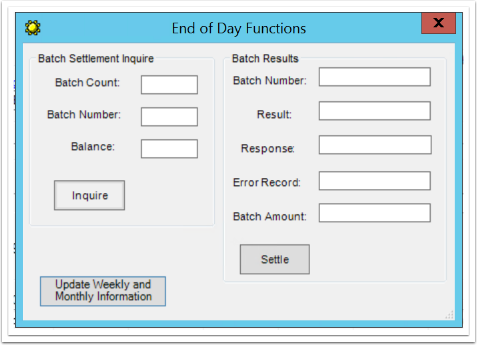
- Click on the ***Inquire*** button to see if there are any credit card batches to be settled.
- The Batch Settlement Inquire fields will fill in automatically when the button is pushed.
- Click on the ***Settle*** button to settle the lateste credit card batches.
- The Batch Results fields will fill in automatically.
Now you are ready to run the Cost Profit for the Day.
- Click on the ***Update Weekly and Monthly Information*** button
- This appropriates the day's sales to the weekly and monthly sales log as well as updates the accounting information.
Close out the box and you're done
The EOD program can be run at any time throughout the business day.
If you run it (and settle credit card batches) at 3:00 p.m., then again at the close of business, all new data added to iMerchant between 3:00 p.m. and the end of the business day will be processed.
Each time you run EOD, it updates the system with information obtained since the last time you ran the program.
Whether or not you run EOD during the day, it is important that you run it every night.
This helps to keep sales information orderly and efficient.
If you fail to run EOD at the end of the day, your weekly and monthly sales data will not be updated properly.
- [FAQs](https://help.imrchnt.com/faqs?hsLang=en#main-content)
- [Reports](https://help.imrchnt.com/faqs?hsLang=en#reports)
- [App](https://help.imrchnt.com/faqs?hsLang=en#app)
- [Getting started](https://help.imrchnt.com/getting-started?hsLang=en#main-content)
- [Store](https://help.imrchnt.com/getting-started?hsLang=en#store)
- [Card Processing](https://help.imrchnt.com/getting-started?hsLang=en#card-processing)
- [Imports](https://help.imrchnt.com/getting-started?hsLang=en#imports)
- [Exports](https://help.imrchnt.com/getting-started?hsLang=en#exports)
- [Troubleshooting](https://help.imrchnt.com/troubleshooting?hsLang=en#main-content)
- [Card Reader](https://help.imrchnt.com/troubleshooting?hsLang=en#card-reader)
- [Web App](https://help.imrchnt.com/troubleshooting?hsLang=en#web-app)
- [General](https://help.imrchnt.com/general?hsLang=en#main-content)
- [Users](https://help.imrchnt.com/general?hsLang=en#users)
- [Point of Sale](https://help.imrchnt.com/general?hsLang=en#point-of-sale)
- [Release Notes](https://help.imrchnt.com/general?hsLang=en#release-notes)
- [Legacy imrchnt](https://help.imrchnt.com/legacy-imrchnt?hsLang=en#main-content)
- [Releases](https://help.imrchnt.com/legacy-imrchnt?hsLang=en#releases)
- [Labels](https://help.imrchnt.com/legacy-imrchnt?hsLang=en#labels)
- [Gift Cards](https://help.imrchnt.com/legacy-imrchnt?hsLang=en#gift-cards)
- [Imports](https://help.imrchnt.com/legacy-imrchnt?hsLang=en#imports)
- [Credit Cards](https://help.imrchnt.com/legacy-imrchnt?hsLang=en#credit-cards)
- [Properties](https://help.imrchnt.com/legacy-imrchnt?hsLang=en#properties)
- [Internal](https://help.imrchnt.com/internal?hsLang=en#main-content)
- [AWS](https://help.imrchnt.com/internal?hsLang=en#aws)
- [iOS](https://help.imrchnt.com/internal?hsLang=en#ios)
- [Card Readers](https://help.imrchnt.com/card-readers?hsLang=en#main-content)
- [Tips](https://help.imrchnt.com/card-readers?hsLang=en#tips)
- [Maintenance](https://help.imrchnt.com/card-readers?hsLang=en#maintenance)
- [Newsletter](https://help.imrchnt.com/newsletter?hsLang=en#main-content)
- [2025](https://help.imrchnt.com/newsletter?hsLang=en#2025)
- [2026](https://help.imrchnt.com/newsletter?hsLang=en#2026)
- [Demo](https://help.imrchnt.com/demo?hsLang=en#main-content)
- [Card Reader](https://help.imrchnt.com/demo?hsLang=en#card-reader)
- [Releases](https://help.imrchnt.com/releases?hsLang=en)
[](https://help.imrchnt.com/?hsLang=en)
[mailto:email@email.com](mailto:email@email.com)
Copyright © 2026, Computac LLC