---
title: Cancel / Refund an Order from the Web
description: imrchnt knowledge base
---
[Skip to content](https://help.imrchnt.com/s/17626/a/1551923-cancel-refund-an-order-from-the-web#main-content)
English
Show submenu for translations

Open main navigation
Close main navigation
- English
Show submenu for translations
- Contact us
Contact us
How can we help you?
- There are no suggestions because the search field is empty.
1. [imrchnt knowledge base](https://help.imrchnt.com/?hsLang=en)
2. [Legacy imrchnt](https://help.imrchnt.com/legacy-imrchnt?hsLang=en)
# Cancel / Refund an Order from the Web
## Refund an Order Cancel Automatically Cancel the Order web order import
If you need to cancel / refund a web order, you should sell the order through Point of Sale as usual. Then once you have done that step, you can cancel / refund the order by pulling up the order and issuing a cancel / refund command from POS to initiate the process. [**Read tutorial about refunding an items.**](https://imrchnt.screenstepslive.com/s/17626/a/808572-refunding-an-item)
**Which Types of Orders Can you Refund / Cancel in IMRCHNT?**
\- If all items are canceled, IC will cancel the order automatically and issue a refund. The order status will be moved to 'Canceled' and a refund transaction will be initiated. Store will see an admin comment on the order about the refund.
\- If the order is only partially canceled, say one of two items canceled, the order will be marked complete, once IC receives an ASN for all items. Partial credit Is not automatically triggered. Something needs to be done on the web site to issue the refund. Store will have to edit the order, remove the canceled item from the order and issue a refund from the website.
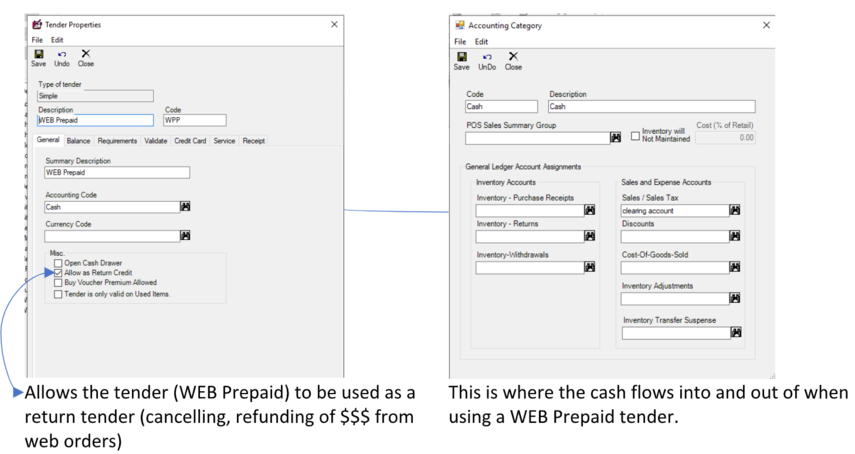
**Confirm your web tender allows for refunding**, by checking if this option is enabled.
[](https://help.imrchnt.com/hubfs/Knowledge%20Base%20Import/tenderproperties-accountcats-3.png?hsLang=en)
## Automatically Cancel the Order on your Indie Commerce Website via IMRCHNT
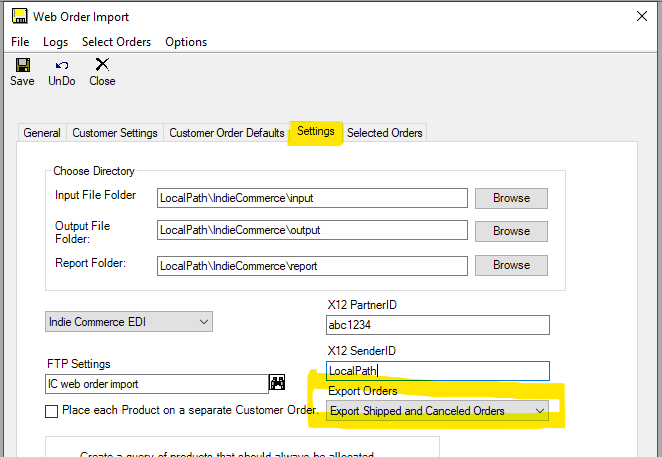
To allow the order to be automatically cancelled on your website, you must be using the Website Order Importer function with EDI enabled. Also you must have the following option selected in order for the cancelled orders to be included in your EDI processes.
Go to the **Website Order Importer** \> **Settings** tab \> Mid way down locate **Export Orders**
\- Select: **Export Shipped and Canceled Orders**
- [FAQs](https://help.imrchnt.com/faqs?hsLang=en#main-content)
- [Reports](https://help.imrchnt.com/faqs?hsLang=en#reports)
- [App](https://help.imrchnt.com/faqs?hsLang=en#app)
- [Getting started](https://help.imrchnt.com/getting-started?hsLang=en#main-content)
- [Store](https://help.imrchnt.com/getting-started?hsLang=en#store)
- [Card Processing](https://help.imrchnt.com/getting-started?hsLang=en#card-processing)
- [Imports](https://help.imrchnt.com/getting-started?hsLang=en#imports)
- [Exports](https://help.imrchnt.com/getting-started?hsLang=en#exports)
- [Troubleshooting](https://help.imrchnt.com/troubleshooting?hsLang=en#main-content)
- [Card Reader](https://help.imrchnt.com/troubleshooting?hsLang=en#card-reader)
- [Web App](https://help.imrchnt.com/troubleshooting?hsLang=en#web-app)
- [General](https://help.imrchnt.com/general?hsLang=en#main-content)
- [Users](https://help.imrchnt.com/general?hsLang=en#users)
- [Point of Sale](https://help.imrchnt.com/general?hsLang=en#point-of-sale)
- [Release Notes](https://help.imrchnt.com/general?hsLang=en#release-notes)
- [Legacy imrchnt](https://help.imrchnt.com/legacy-imrchnt?hsLang=en#main-content)
- [Releases](https://help.imrchnt.com/legacy-imrchnt?hsLang=en#releases)
- [Labels](https://help.imrchnt.com/legacy-imrchnt?hsLang=en#labels)
- [Gift Cards](https://help.imrchnt.com/legacy-imrchnt?hsLang=en#gift-cards)
- [Imports](https://help.imrchnt.com/legacy-imrchnt?hsLang=en#imports)
- [Credit Cards](https://help.imrchnt.com/legacy-imrchnt?hsLang=en#credit-cards)
- [Properties](https://help.imrchnt.com/legacy-imrchnt?hsLang=en#properties)
- [Internal](https://help.imrchnt.com/internal?hsLang=en#main-content)
- [AWS](https://help.imrchnt.com/internal?hsLang=en#aws)
- [iOS](https://help.imrchnt.com/internal?hsLang=en#ios)
- [Card Readers](https://help.imrchnt.com/card-readers?hsLang=en#main-content)
- [Tips](https://help.imrchnt.com/card-readers?hsLang=en#tips)
- [Maintenance](https://help.imrchnt.com/card-readers?hsLang=en#maintenance)
- [Newsletter](https://help.imrchnt.com/newsletter?hsLang=en#main-content)
- [2025](https://help.imrchnt.com/newsletter?hsLang=en#2025)
- [2026](https://help.imrchnt.com/newsletter?hsLang=en#2026)
- [Demo](https://help.imrchnt.com/demo?hsLang=en#main-content)
- [Card Reader](https://help.imrchnt.com/demo?hsLang=en#card-reader)
- [Releases](https://help.imrchnt.com/releases?hsLang=en)
[](https://help.imrchnt.com/?hsLang=en)
[mailto:email@email.com](mailto:email@email.com)
Copyright © 2026, Computac LLC