---
title: Physical Inventory
description: imrchnt knowledge base
---
[Skip to content](https://help.imrchnt.com/s/17626/a/1353477-physical-inventory#main-content)
English
Show submenu for translations

Open main navigation
Close main navigation
- English
Show submenu for translations
- Contact us
Contact us
How can we help you?
- There are no suggestions because the search field is empty.
1. [imrchnt knowledge base](https://help.imrchnt.com/?hsLang=en)
2. [Legacy imrchnt](https://help.imrchnt.com/legacy-imrchnt?hsLang=en)
# Physical Inventory
## Physical Inventory Troubleshooting Physical Inventory
[**Click here for an updated version of our Physical Inventory Process. **](https://help.imrchnt.com/s/how_to/l/1910039-physical-inventory-process?hsLang=en)
Click the IMPORT button to import a ScanPal File of your scanned inventory.
[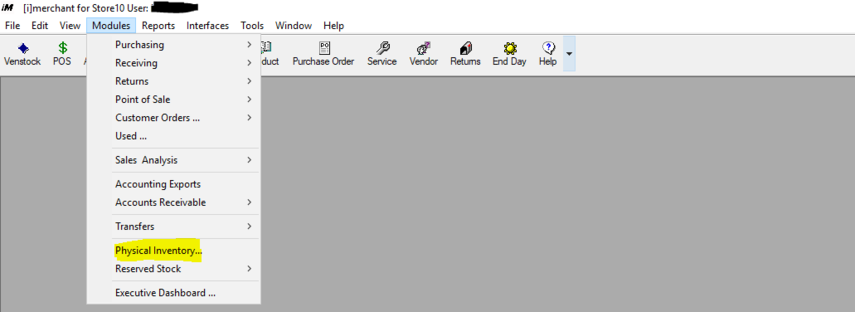](https://media.screensteps.com/image_assets/assets/004/048/388/original/physicalinventory0.PNG)
Then click IMPORT
[](https://media.screensteps.com/image_assets/assets/004/048/397/original/physicalinventory1.PNG)
Locate an existing physical inventory process by highlighted a record, then click SELECT below.
[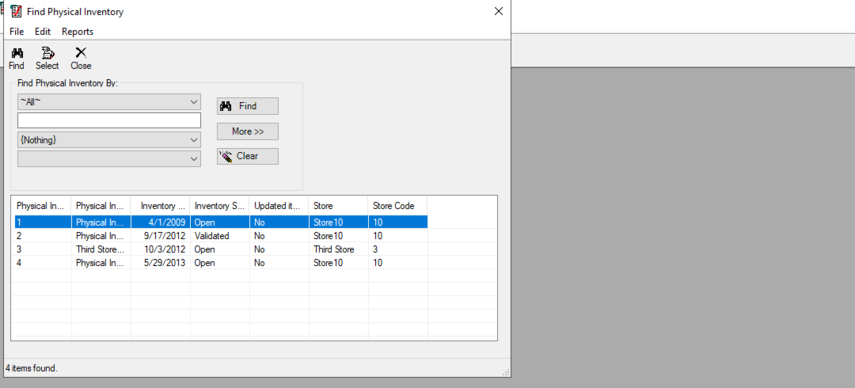](https://media.screensteps.com/image_assets/assets/004/048/398/original/physicalinventory0a.PNG)
Next click the SELECT IMPORTED FILE TO VIEW
[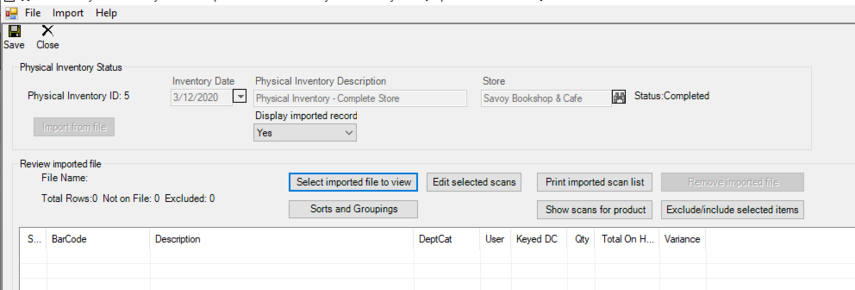](https://media.screensteps.com/image_assets/assets/004/047/901/original/physicalinventory.PNG)
Here you can select one of the Scan Pal files (.spi files).
[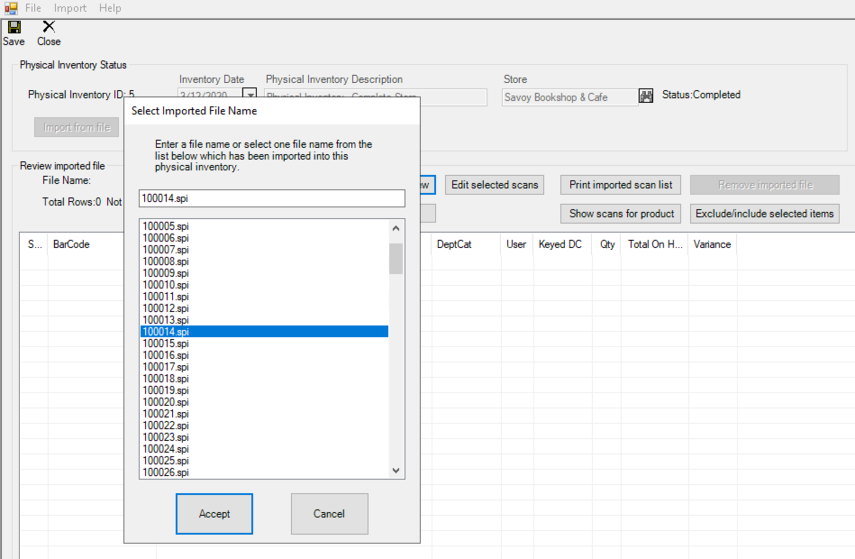](https://media.screensteps.com/image_assets/assets/004/047/921/original/physicalinventory2.PNG)
If you need to import updates to your inventory since you physical inventory was taken, use the IMPORT options on the top menu. You can import a product list file, import from inventory change log or from reserved stock.
[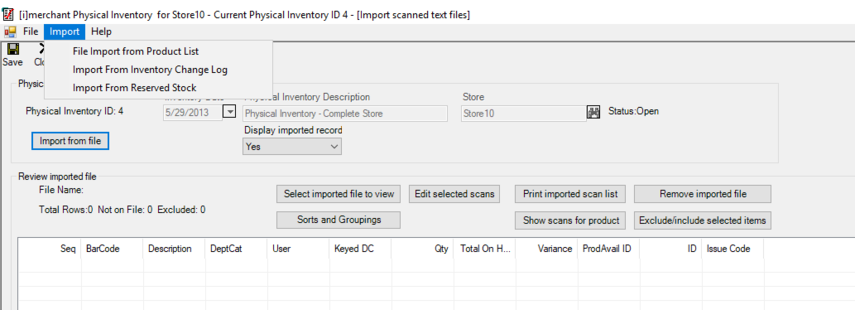](https://media.screensteps.com/image_assets/assets/004/048/399/original/physicalinventory3.PNG)
Next search for all of the changes from the time you have done your Stock Physical Inventory to Now. Then click IMPORT button on the top menu. You will be asked if you want to select ALL or just the selected rows.
[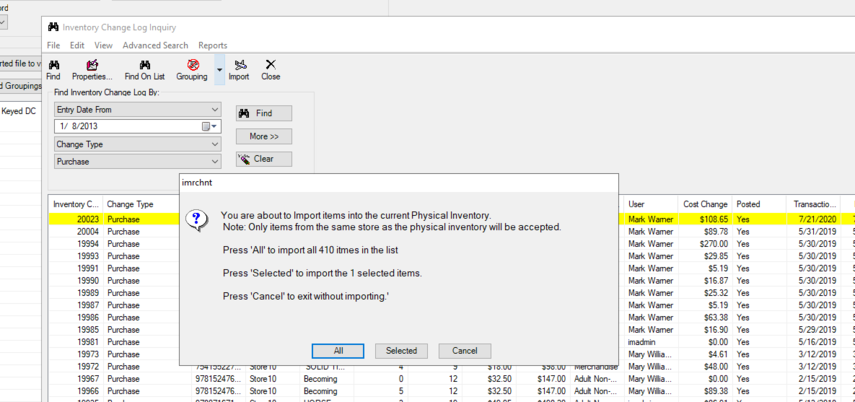](https://media.screensteps.com/image_assets/assets/004/048/600/original/physicalinventory4.PNG)
## Troubleshooting Physical Inventory
If you are receiving an error when trying to import a physical inventory file, try converting the file to a CSV.
[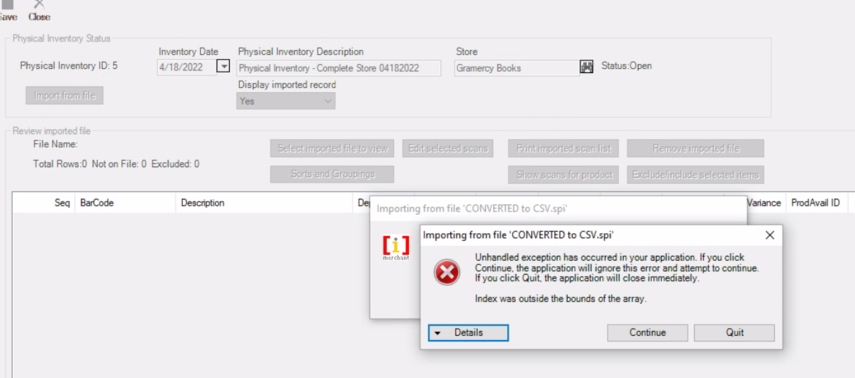](https://help.imrchnt.com/hubfs/Knowledge%20Base%20Import/physicalinventory-error-3.png?hsLang=en)
Confirm the file is formatted to match this format file: [**Scan Pal File Definition**](https://docs.google.com/document/d/17jkde3116R0H6O6Jj1ltU5fz4SjLX4JP/edit?usp=sharing&ouid=112654055309027109570&rtpof=true&sd=true)
A ScanPal file is a file that is created by the Scan Pal hand held device and software sold and rented by Conputac. The file is designed to store the inventory counts that will be used in various \[i\]merchant imports. The most common being the physical inventory module.
The following defines the file so that it can be created without needing to use the actual ScanPal device. This is desirable if an outside vendor is used to conduct the physical inventory.
A ScanPal file is a comma separated value ascii text file. The convention is to use a file suffix of .spi to identify these files. Typically when \[i\]merchant has used the file the suffix will be changed to .xpi.
- [FAQs](https://help.imrchnt.com/faqs?hsLang=en#main-content)
- [Reports](https://help.imrchnt.com/faqs?hsLang=en#reports)
- [App](https://help.imrchnt.com/faqs?hsLang=en#app)
- [Getting started](https://help.imrchnt.com/getting-started?hsLang=en#main-content)
- [Store](https://help.imrchnt.com/getting-started?hsLang=en#store)
- [Card Processing](https://help.imrchnt.com/getting-started?hsLang=en#card-processing)
- [Imports](https://help.imrchnt.com/getting-started?hsLang=en#imports)
- [Exports](https://help.imrchnt.com/getting-started?hsLang=en#exports)
- [Troubleshooting](https://help.imrchnt.com/troubleshooting?hsLang=en#main-content)
- [Card Reader](https://help.imrchnt.com/troubleshooting?hsLang=en#card-reader)
- [Web App](https://help.imrchnt.com/troubleshooting?hsLang=en#web-app)
- [General](https://help.imrchnt.com/general?hsLang=en#main-content)
- [Users](https://help.imrchnt.com/general?hsLang=en#users)
- [Point of Sale](https://help.imrchnt.com/general?hsLang=en#point-of-sale)
- [Release Notes](https://help.imrchnt.com/general?hsLang=en#release-notes)
- [Legacy imrchnt](https://help.imrchnt.com/legacy-imrchnt?hsLang=en#main-content)
- [Releases](https://help.imrchnt.com/legacy-imrchnt?hsLang=en#releases)
- [Labels](https://help.imrchnt.com/legacy-imrchnt?hsLang=en#labels)
- [Gift Cards](https://help.imrchnt.com/legacy-imrchnt?hsLang=en#gift-cards)
- [Imports](https://help.imrchnt.com/legacy-imrchnt?hsLang=en#imports)
- [Credit Cards](https://help.imrchnt.com/legacy-imrchnt?hsLang=en#credit-cards)
- [Properties](https://help.imrchnt.com/legacy-imrchnt?hsLang=en#properties)
- [Internal](https://help.imrchnt.com/internal?hsLang=en#main-content)
- [AWS](https://help.imrchnt.com/internal?hsLang=en#aws)
- [iOS](https://help.imrchnt.com/internal?hsLang=en#ios)
- [Card Readers](https://help.imrchnt.com/card-readers?hsLang=en#main-content)
- [Tips](https://help.imrchnt.com/card-readers?hsLang=en#tips)
- [Maintenance](https://help.imrchnt.com/card-readers?hsLang=en#maintenance)
- [Newsletter](https://help.imrchnt.com/newsletter?hsLang=en#main-content)
- [2025](https://help.imrchnt.com/newsletter?hsLang=en#2025)
- [2026](https://help.imrchnt.com/newsletter?hsLang=en#2026)
- [Demo](https://help.imrchnt.com/demo?hsLang=en#main-content)
- [Card Reader](https://help.imrchnt.com/demo?hsLang=en#card-reader)
- [Releases](https://help.imrchnt.com/releases?hsLang=en)
[](https://help.imrchnt.com/?hsLang=en)
[mailto:email@email.com](mailto:email@email.com)
Copyright © 2026, Computac LLC