---
title: Order Fulfillment
description: imrchnt knowledge base
---
[Skip to content](https://help.imrchnt.com/s/17626/a/1322447-order-fulfillment#main-content)
English
Show submenu for translations

Open main navigation
Close main navigation
- English
Show submenu for translations
- Contact us
Contact us
How can we help you?
- There are no suggestions because the search field is empty.
1. [imrchnt knowledge base](https://help.imrchnt.com/?hsLang=en)
2. [Legacy imrchnt](https://help.imrchnt.com/legacy-imrchnt?hsLang=en)
# Order Fulfillment
## About Fulfilling Orders Through IMerchant
Customer Orders can be manually entered into the system or imported via the [**web order importer**](https://help.imrchnt.com/s/doumentation/l/1258127-website-order-importer-import-orders-from-web?hsLang=en). The way you process / fulfill orders may be a bit different from the way another store does it so here are some tools to help you.
Also look at additional information on **Picking Items for Open Customer Orders**
## Finding Open Orders in IMerchant
After you have either manually entered some customer orders or after the web order importer has imported new sales into your system. You can run the following report to find the customer orders on your system.
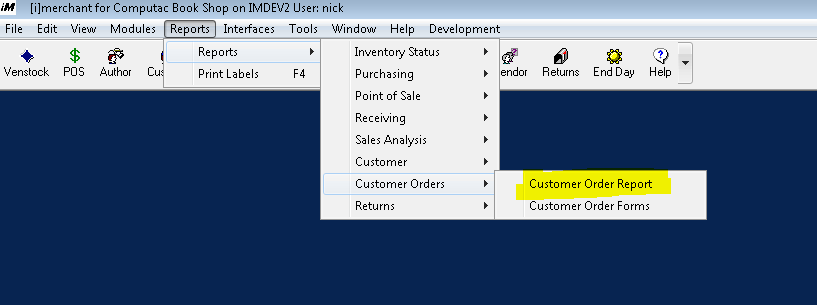
Once you have IMerchant open go to: **Reports \> Reports \> Customer Orders \> Customer Order Report**
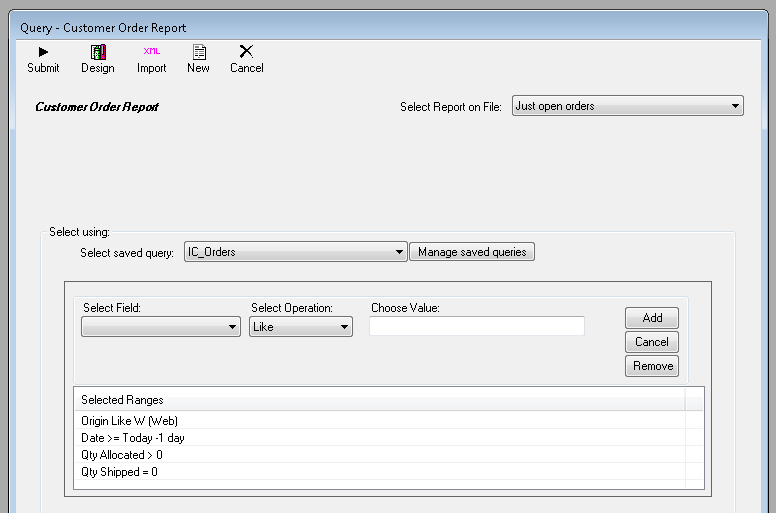
**Setup the following Query:**
\- Picked = NO
\- QTY Needed \>= 1
\- Sort by either | Customer PO | Or | Department Category |
Customize your query as needed, another example would be:
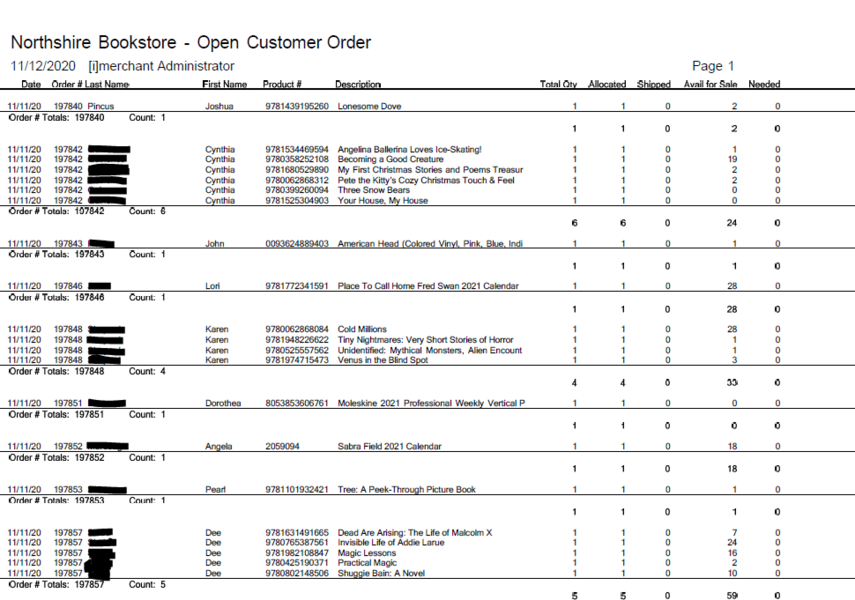
**Column Name Descriptions on the Pick Sheets Below:**
**Allocated **= Assigned to Order
**Shipped **= Finished through the register
**Avail For Sale** = Still available in the store for sale
**Needed **= How many are still needed to fulfill the order
(***These may be in stock available for sale but for some reason it has not been allocated***).
**Sample Customer Order Pick Sheet #1**
Use the Import XML button to import the following report design: [**opencustomerorders.xml**](https://www.dropbox.com/s/5yifgdij2zikcgh/opencustomerorders.xml?dl=0)
[](https://media.screensteps.com/image_assets/assets/003/915/917/original/orderfulfillmentreport-sample.PNG)
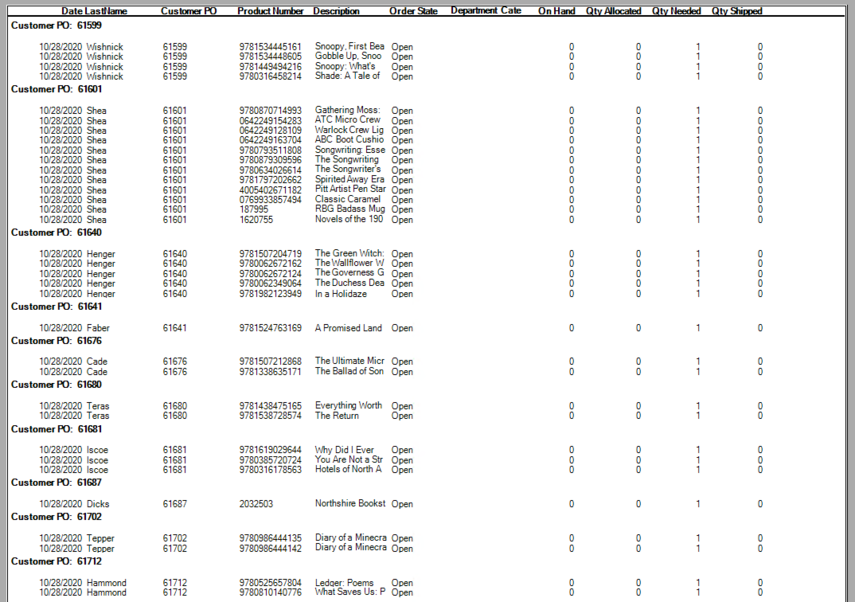
**Sample Customer Order Pick Sheet #2**
Use the Import XML button to import the following report design: [**OrdersToBePicked.xml**](https://www.dropbox.com/s/fqzad3qdi8wcehc/Orderstobepicked-sampleA.xml?dl=0)
[](https://media.screensteps.com/image_assets/assets/003/917/022/original/orderfulfillment-orderstobepicked-sample.PNG)
## How to Fulfilling Orders through the register
You can use the following wrapper form to **print a single wrapper** or **print multiple wrappers** for many orders you may have recently received. You will use the **Wrapper **to rehydrate each sale at the register, you will scan the barcode on the wrapper with the scanner at your POS and IMerchant will pull in all of the details so the order is ready to complete.
Go to: **Reports \> Reports \> Customer Orders \> Customer Order Forms**
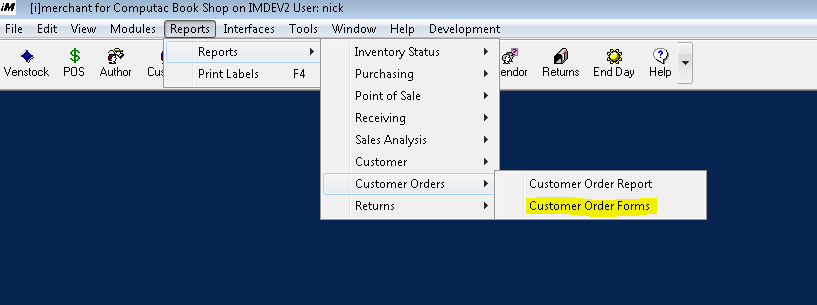
Define a query much like the one you used in the pick report above.
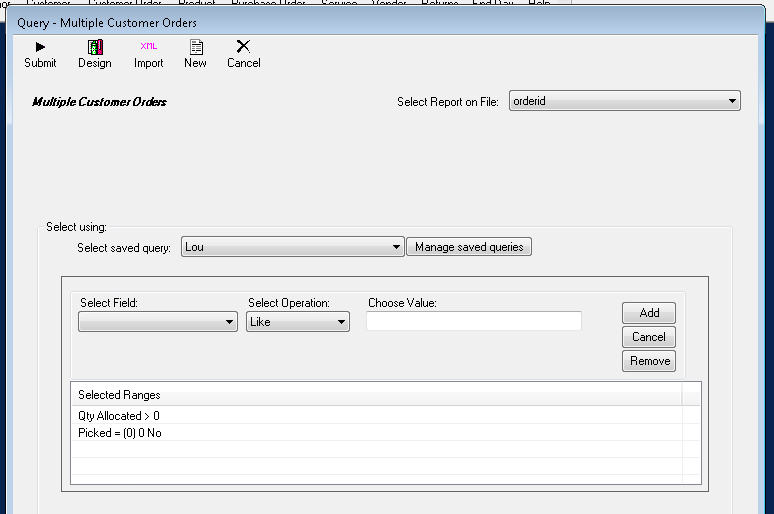
Pick from the following customer order wrapper xml designs:
**[Customer Order Pick Sheet (for 8 X 11)](https://www.dropbox.com/s/yhhhmmidi387azp/20201029%20Customer%20Order%20Pick%20Sheet%20%28%208%20X%2011%29.xml?dl=0) **[**Customer Order Wrapper Format (for T88)**](https://www.dropbox.com/s/i2krqjns09l18yw/20201029%20Customer%20Order%20Wrapper%20Format%20%28forT88%29.xml?dl=0)
Below is an example of the **Customer Order Pick Sheet (for 8 X 11)**
-1.png?width=670&height=782&name=system_printer_(8x11)-1.png)
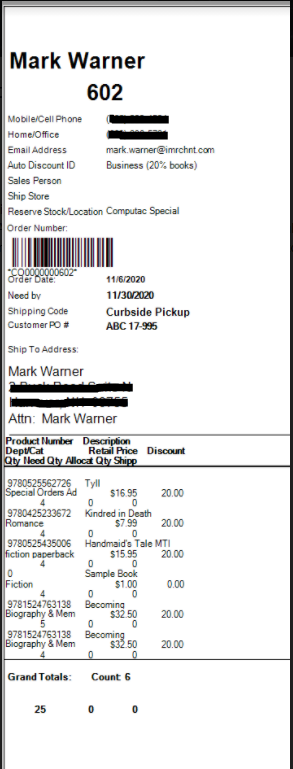
Below is an example of the **Customer Order Wrapper Format (forT88)**
- [FAQs](https://help.imrchnt.com/faqs?hsLang=en#main-content)
- [Reports](https://help.imrchnt.com/faqs?hsLang=en#reports)
- [App](https://help.imrchnt.com/faqs?hsLang=en#app)
- [Getting started](https://help.imrchnt.com/getting-started?hsLang=en#main-content)
- [Store](https://help.imrchnt.com/getting-started?hsLang=en#store)
- [Card Processing](https://help.imrchnt.com/getting-started?hsLang=en#card-processing)
- [Imports](https://help.imrchnt.com/getting-started?hsLang=en#imports)
- [Exports](https://help.imrchnt.com/getting-started?hsLang=en#exports)
- [Troubleshooting](https://help.imrchnt.com/troubleshooting?hsLang=en#main-content)
- [Card Reader](https://help.imrchnt.com/troubleshooting?hsLang=en#card-reader)
- [Web App](https://help.imrchnt.com/troubleshooting?hsLang=en#web-app)
- [General](https://help.imrchnt.com/general?hsLang=en#main-content)
- [Users](https://help.imrchnt.com/general?hsLang=en#users)
- [Point of Sale](https://help.imrchnt.com/general?hsLang=en#point-of-sale)
- [Release Notes](https://help.imrchnt.com/general?hsLang=en#release-notes)
- [Legacy imrchnt](https://help.imrchnt.com/legacy-imrchnt?hsLang=en#main-content)
- [Releases](https://help.imrchnt.com/legacy-imrchnt?hsLang=en#releases)
- [Labels](https://help.imrchnt.com/legacy-imrchnt?hsLang=en#labels)
- [Gift Cards](https://help.imrchnt.com/legacy-imrchnt?hsLang=en#gift-cards)
- [Imports](https://help.imrchnt.com/legacy-imrchnt?hsLang=en#imports)
- [Credit Cards](https://help.imrchnt.com/legacy-imrchnt?hsLang=en#credit-cards)
- [Properties](https://help.imrchnt.com/legacy-imrchnt?hsLang=en#properties)
- [Internal](https://help.imrchnt.com/internal?hsLang=en#main-content)
- [AWS](https://help.imrchnt.com/internal?hsLang=en#aws)
- [iOS](https://help.imrchnt.com/internal?hsLang=en#ios)
- [Card Readers](https://help.imrchnt.com/card-readers?hsLang=en#main-content)
- [Tips](https://help.imrchnt.com/card-readers?hsLang=en#tips)
- [Maintenance](https://help.imrchnt.com/card-readers?hsLang=en#maintenance)
- [Newsletter](https://help.imrchnt.com/newsletter?hsLang=en#main-content)
- [2025](https://help.imrchnt.com/newsletter?hsLang=en#2025)
- [2026](https://help.imrchnt.com/newsletter?hsLang=en#2026)
- [Demo](https://help.imrchnt.com/demo?hsLang=en#main-content)
- [Card Reader](https://help.imrchnt.com/demo?hsLang=en#card-reader)
- [Releases](https://help.imrchnt.com/releases?hsLang=en)
[](https://help.imrchnt.com/?hsLang=en)
[mailto:email@email.com](mailto:email@email.com)
Copyright © 2026, Computac LLC