
In order to refund a sale in im+ you go to Reports > Transactions.
A sale can be found in one of two ways. You can use the search feature in transaction and apply filters or you can scan the receipts barcode or qr code.
When you have found the sale you want to issue a refund to you click on the sale.
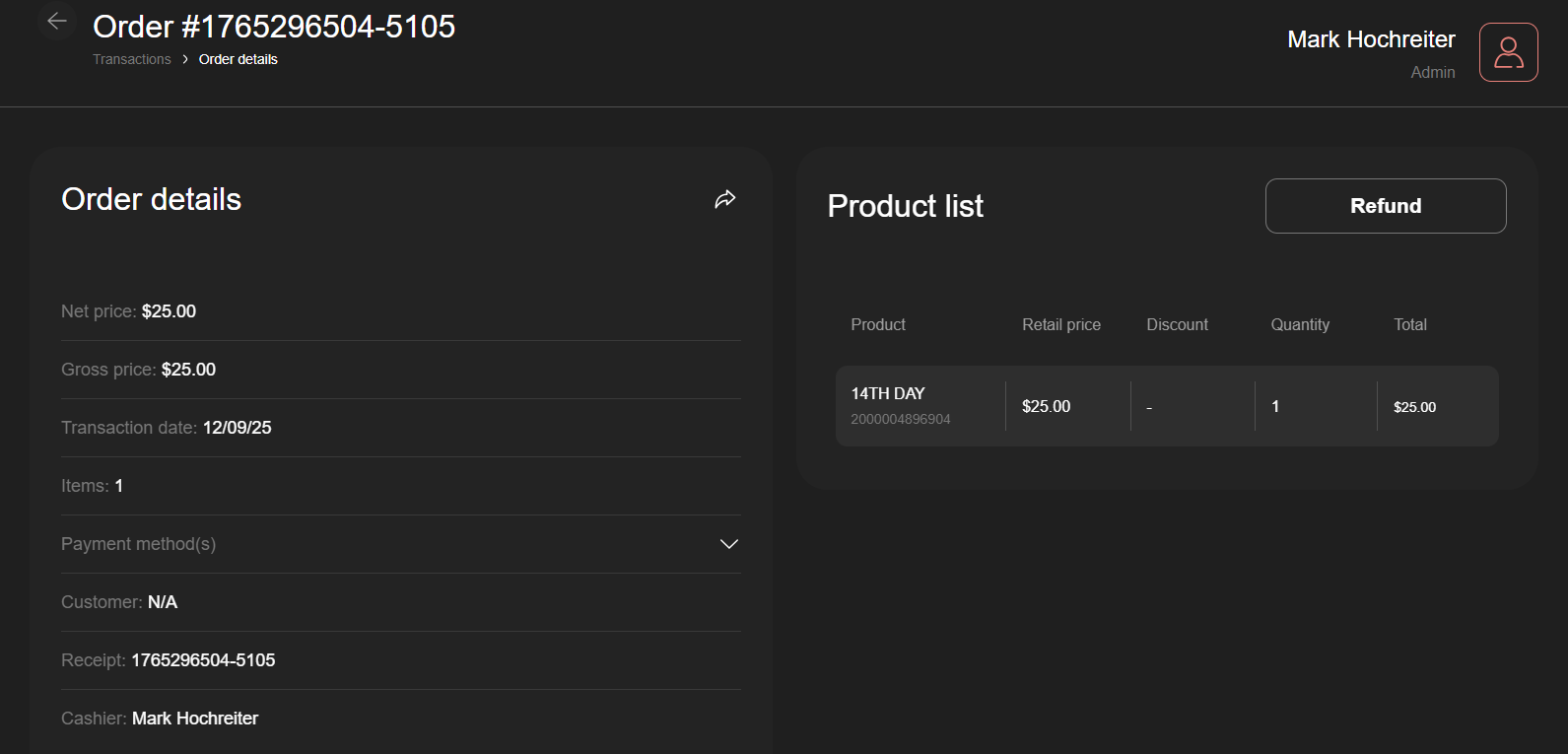
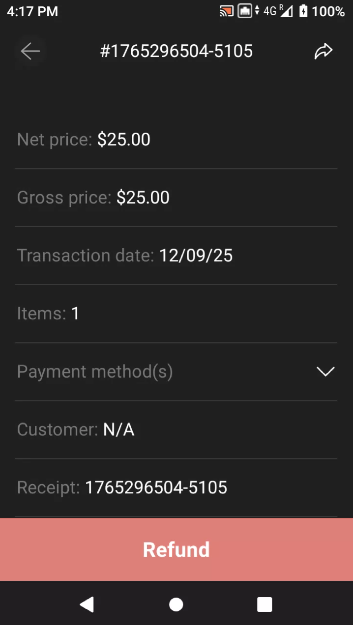
This will bring you into the Order details where you will see the Refund button.
Web App (upper right)
Mobile App (bottom)
Clicking the Refund button will take you to the issue refund screen where you select all items or the individual items you wish to refund in this transaction.
You will then be able to determine the qty of the item you want to refund. This is only an option if more than 1 of an item was part of the sale.
Clicking the Next button will take you to select a Reason for Refund. Select the reason and click Next.
You will be presented with a Refund Summary. If all looks good, click the Next button.
In the Refund Method screen you will be given Tender options for how to issue the refund.
The only time you will need a card to interact with the card reader is when the sale was made initially in Offline mode. A refund of an Offline sale has be done as an unreferenced refund. Any other card refund will be referenced. We know what card was used and we will put the money back to that card automatically without any card interacting with the device.
You also have the option to issue the refund as Cash or in the future you will be able to issue it as a Gift Card.
Choose your tender type, follow the prompts and your transaction will now appear as refunded or partially refunded.