---
title: May 2026 Updates
description: This article is an update on current projects in development in May 2026
---
[Skip to content](https://help.imrchnt.com/may-2026-updates#main-content)
English
Show submenu for translations

Open main navigation
Close main navigation
- English
Show submenu for translations
- Contact us
Contact us
How can we help you?
- There are no suggestions because the search field is empty.
1. [imrchnt knowledge base](https://help.imrchnt.com/?hsLang=en)
2. [Newsletter](https://help.imrchnt.com/newsletter?hsLang=en)
3. [2026](https://help.imrchnt.com/newsletter?hsLang=en#2026)
# May 2026 Updates
---
**POS Quick Buttons**
---
To build POS Quick Buttons within im+ you will first go to Admin \> Stores
Click on the Store you want to build the buttons for.
There is a new section within Stores called POS Actions. Click on the Manage POS Actions button
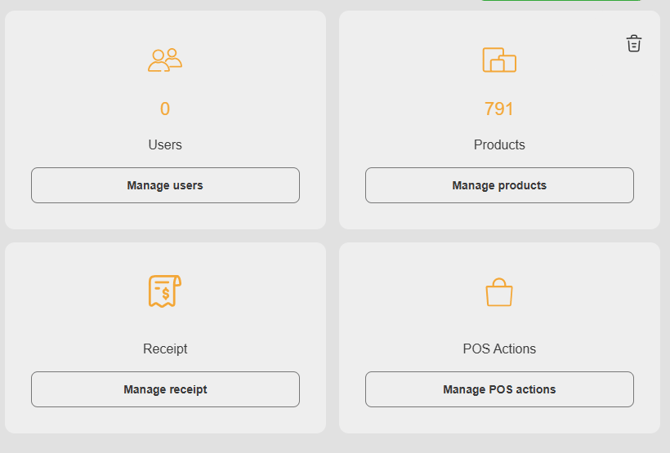
This is where you will create and manage your POS Quick Buttons by creating tags and assigning products to those tags.
In this example I have created a tag for an event for the Author TJ Klune

When I expand that tag down I can see the items I have assigned to this tag as well as add new items to the tag.
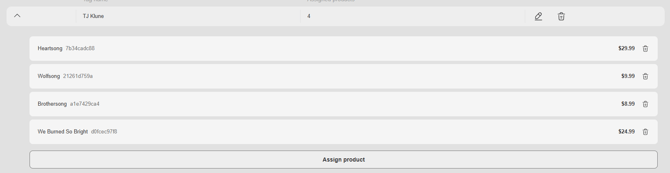
I can also add other tags and assign items within those tags.
Watch this video to see the Tags in action
Quick Button use on the Card Reader App
**One Click Payment** - we've updated the payment button to always assume a credit card is paying for the entire sale - the button to the left allows you to split tenders and chooser alternate tenders if the customer is not going to use a credit card to pay for the entire sale.
Quick Button use on the Web App showing an example of what could be done with a Cafe register.
**New Look** - notice the new layout of POS for Web and Tablet platforms.
**New Feature** - Accounting Categories - these Cafe items are assigned to an accounting category that will apply a different tax rate (2%) than the generic store tax rate.
---
**Accounting Categories**
---
In order to create and apply Accounting Categories you first go to Admin \> Accounting Category
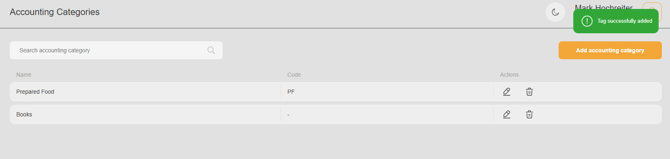
Here I've created two accounting categories (Prepared Food and Books)
Prepared Food is a non inventoried group and has a 2% tax applied to it that overrides the default store tax.
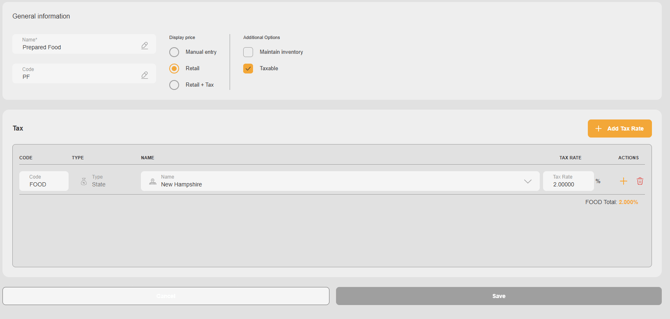
If I had stores in multiple states I could set up the rules for each state and depending on the state assignment for the store I am sell from we will use that tax rule for the product being sold.
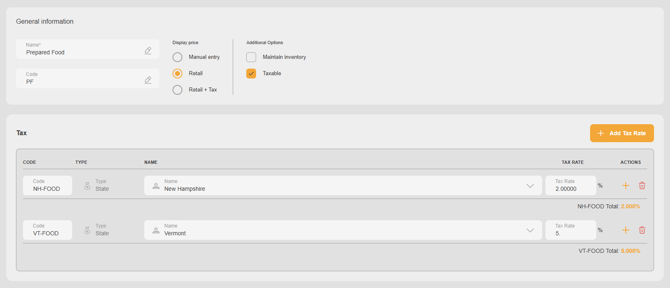
Within each Accounting Category you also have ability to alter the Display Price setting at POS.
**Manual Entry** - allows for price point items (e.g. untracked used books or newspapers where the price is on the the item but not maintained in the system) - This will allow you select the item and manually input the Retail price at POS.
**Retail** - uses the retail price of the item maintained in the system
**Retail + Tax** - displays the total sum of the item to include the retail + tax
Additional Options:
**Maintain Inventory** - if this box is checked we will track the inventory levels of the item, uncheck this box and we won't track inventory levels for items assigned to this accounting category.
**Taxable** - determines whether or not the items assigned to this Accounting Category have taxes applied to them at POS.
---
**DATA FEEDS**
---
We have already released to production a new capability to create SFTP accounts at the Admin and Vendor level. This allows you to quickly produce an SFTP site specific to your account where we can send and receive data.
For Legacy imrchnt stores this means that we can produce a automated task that will place a delta file from your legacy system to your im+ that will give you near real time inventory levels between legacy and im+
The 2nd phase of this project which has just been released into our dev environment will be to provide a front end tool to schedule these data imports / exports.
---
**TRANSACTIONS**
---
Added ability to search transactions by Product Number
Added ability within Product Properties to view transactions by item
All of this working is all currently in the development instance of the application.
If you have any comments, suggestions please let us know.
We will hope to have this out in production by the end of the month.
- [FAQs](https://help.imrchnt.com/faqs?hsLang=en#main-content)
- [Reports](https://help.imrchnt.com/faqs?hsLang=en#reports)
- [App](https://help.imrchnt.com/faqs?hsLang=en#app)
- [Getting started](https://help.imrchnt.com/getting-started?hsLang=en#main-content)
- [Store](https://help.imrchnt.com/getting-started?hsLang=en#store)
- [Card Processing](https://help.imrchnt.com/getting-started?hsLang=en#card-processing)
- [Imports](https://help.imrchnt.com/getting-started?hsLang=en#imports)
- [Exports](https://help.imrchnt.com/getting-started?hsLang=en#exports)
- [Troubleshooting](https://help.imrchnt.com/troubleshooting?hsLang=en#main-content)
- [Card Reader](https://help.imrchnt.com/troubleshooting?hsLang=en#card-reader)
- [Web App](https://help.imrchnt.com/troubleshooting?hsLang=en#web-app)
- [General](https://help.imrchnt.com/general?hsLang=en#main-content)
- [Users](https://help.imrchnt.com/general?hsLang=en#users)
- [Point of Sale](https://help.imrchnt.com/general?hsLang=en#point-of-sale)
- [Release Notes](https://help.imrchnt.com/general?hsLang=en#release-notes)
- [Legacy imrchnt](https://help.imrchnt.com/legacy-imrchnt?hsLang=en#main-content)
- [Releases](https://help.imrchnt.com/legacy-imrchnt?hsLang=en#releases)
- [Labels](https://help.imrchnt.com/legacy-imrchnt?hsLang=en#labels)
- [Gift Cards](https://help.imrchnt.com/legacy-imrchnt?hsLang=en#gift-cards)
- [Imports](https://help.imrchnt.com/legacy-imrchnt?hsLang=en#imports)
- [Credit Cards](https://help.imrchnt.com/legacy-imrchnt?hsLang=en#credit-cards)
- [Properties](https://help.imrchnt.com/legacy-imrchnt?hsLang=en#properties)
- [Internal](https://help.imrchnt.com/internal?hsLang=en#main-content)
- [AWS](https://help.imrchnt.com/internal?hsLang=en#aws)
- [iOS](https://help.imrchnt.com/internal?hsLang=en#ios)
- [Card Readers](https://help.imrchnt.com/card-readers?hsLang=en#main-content)
- [Tips](https://help.imrchnt.com/card-readers?hsLang=en#tips)
- [Maintenance](https://help.imrchnt.com/card-readers?hsLang=en#maintenance)
- [Newsletter](https://help.imrchnt.com/newsletter?hsLang=en#main-content)
- [2025](https://help.imrchnt.com/newsletter?hsLang=en#2025)
- [2026](https://help.imrchnt.com/newsletter?hsLang=en#2026)
- [Demo](https://help.imrchnt.com/demo?hsLang=en#main-content)
- [Card Reader](https://help.imrchnt.com/demo?hsLang=en#card-reader)
- [Releases](https://help.imrchnt.com/releases?hsLang=en)
[](https://help.imrchnt.com/?hsLang=en)
[mailto:email@email.com](mailto:email@email.com)
Copyright © 2026, Computac LLC
```json
{
"@context" : "https://schema.org",
"@type" : "VideoObject",
"contentUrl" : "https://243943054.fs1.hubspotusercontent-na2.net/hubfs/243943054/video_assets/340107714287/inherited/web_optimized.mp4",
"dateModified" : "2026-05-01T15:26:21.989Z",
"duration" : "PT47S",
"height" : 848,
"name" : "video_2026-05-01_11-14-03",
"thumbnailUrl" : "https://243943054.fs1.hubspotusercontent-na2.net/hubfs/243943054/video_2026-05-01_11-14-03.mp4/medium.jpg",
"uploadDate" : "2026-05-01T15:26:03.904Z",
"width" : 464
}
```
```json
{
"@context" : "https://schema.org",
"@type" : "VideoObject",
"contentUrl" : "https://243943054.fs1.hubspotusercontent-na2.net/hubfs/243943054/video_assets/340107796209/inherited/web_optimized.mp4",
"dateModified" : "2026-05-01T15:41:37.170Z",
"duration" : "PT11S",
"height" : 944,
"name" : "quickpos_cafe",
"thumbnailUrl" : "https://243943054.fs1.hubspotusercontent-na2.net/hubfs/243943054/quickpos_cafe.mp4/medium.jpg",
"uploadDate" : "2026-05-01T15:40:48.735Z",
"width" : 1918
}
```