---
title: Import Sales into legacy imrchnt POS
description: How to import sales made on a 3rd party application into legacy imrchnt with a .spi file.
---
[Skip to content](https://help.imrchnt.com/import-sales-into-legacy-imrchnt-pos#main-content)
English
Show submenu for translations

Open main navigation
Close main navigation
- English
Show submenu for translations
- Contact us
Contact us
How can we help you?
- There are no suggestions because the search field is empty.
1. [imrchnt knowledge base](https://help.imrchnt.com/?hsLang=en)
2. [Legacy imrchnt](https://help.imrchnt.com/legacy-imrchnt?hsLang=en)
3. [Imports](https://help.imrchnt.com/legacy-imrchnt?hsLang=en#imports)
# Import Sales into legacy imrchnt POS
## You've made sales on im+ or another 3rd Party POS application and now you want to import them into legacy imrchnt.
In order to import your sales into legacy imrchnt POS the file needs to be in a certain format and saved as a .spi file
From im+ you will have chosen to export the File as a .spi this file will save as a .txt all you need to do is change the extension from .txt to .spi
[Click here to see how you change the extension of a file](https://help.imrchnt.com/how-to-change-a-file-extension?hsLang=en)
From other 3rd party POS application, you will need to manually create the .spi format we looking for. The key columns we are interested in are the Barcode (the number generated from scanning the product) and Quantity.
If **Price** is not included we will pull the retail price from the item in imrchnt.
In Excel create a new file with following columns.
FIELD | SEQUENCE | BARCODE | QUANTITY | DEPTCAT | USER | PRICE | AREA
Paste in the values into the Barcode and Quantity columns.
Your Excel file should look like this:

Save the file as a dos.csv
Name the file with date and event name (e.g. 20251205\_warhousesale)
Change the extension in the file name from .csv to .spi
Move over to legacy imrchnt and go to POS \> Function Menu \> Import from ScanPal File
You will see this window:
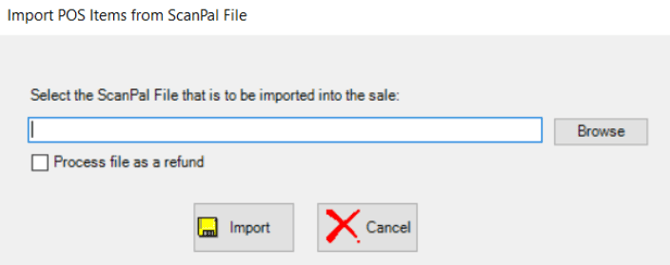
Find the .spi file you've just created and click the Import button
Once the process has completed you will see this prompt with a report of the Import status
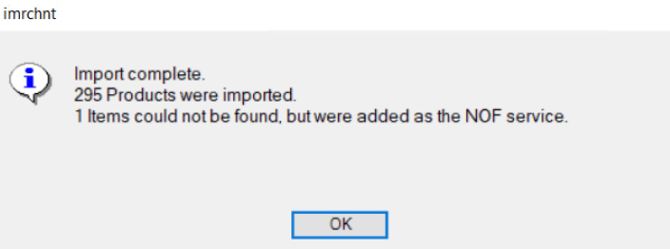
Click ok and all of your items will be brought into the sale on legacy imrchnt.
The 1 item that could not be found is added to the sale as an NOF Service.
This product needs to be identified in your export file and managed in a separate transaction.
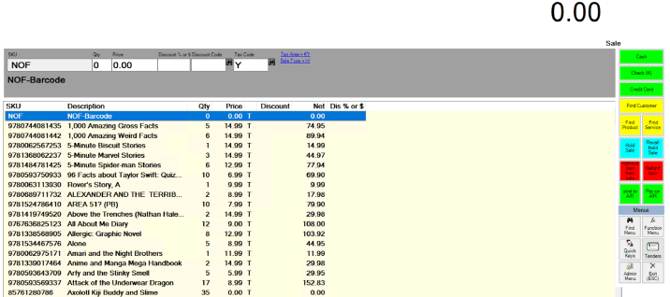
Finalize the Sale to a Simple Tender and your sales made on a 3rd Party POS application have now been processed in your legacy imrchnt system.
- [FAQs](https://help.imrchnt.com/faqs?hsLang=en#main-content)
- [Reports](https://help.imrchnt.com/faqs?hsLang=en#reports)
- [App](https://help.imrchnt.com/faqs?hsLang=en#app)
- [Getting started](https://help.imrchnt.com/getting-started?hsLang=en#main-content)
- [Store](https://help.imrchnt.com/getting-started?hsLang=en#store)
- [Card Processing](https://help.imrchnt.com/getting-started?hsLang=en#card-processing)
- [Imports](https://help.imrchnt.com/getting-started?hsLang=en#imports)
- [Exports](https://help.imrchnt.com/getting-started?hsLang=en#exports)
- [Troubleshooting](https://help.imrchnt.com/troubleshooting?hsLang=en#main-content)
- [Card Reader](https://help.imrchnt.com/troubleshooting?hsLang=en#card-reader)
- [Web App](https://help.imrchnt.com/troubleshooting?hsLang=en#web-app)
- [General](https://help.imrchnt.com/general?hsLang=en#main-content)
- [Users](https://help.imrchnt.com/general?hsLang=en#users)
- [Point of Sale](https://help.imrchnt.com/general?hsLang=en#point-of-sale)
- [Release Notes](https://help.imrchnt.com/general?hsLang=en#release-notes)
- [Legacy imrchnt](https://help.imrchnt.com/legacy-imrchnt?hsLang=en#main-content)
- [Releases](https://help.imrchnt.com/legacy-imrchnt?hsLang=en#releases)
- [Labels](https://help.imrchnt.com/legacy-imrchnt?hsLang=en#labels)
- [Gift Cards](https://help.imrchnt.com/legacy-imrchnt?hsLang=en#gift-cards)
- [Imports](https://help.imrchnt.com/legacy-imrchnt?hsLang=en#imports)
- [Credit Cards](https://help.imrchnt.com/legacy-imrchnt?hsLang=en#credit-cards)
- [Properties](https://help.imrchnt.com/legacy-imrchnt?hsLang=en#properties)
- [Internal](https://help.imrchnt.com/internal?hsLang=en#main-content)
- [AWS](https://help.imrchnt.com/internal?hsLang=en#aws)
- [iOS](https://help.imrchnt.com/internal?hsLang=en#ios)
- [Card Readers](https://help.imrchnt.com/card-readers?hsLang=en#main-content)
- [Tips](https://help.imrchnt.com/card-readers?hsLang=en#tips)
- [Maintenance](https://help.imrchnt.com/card-readers?hsLang=en#maintenance)
- [Newsletter](https://help.imrchnt.com/newsletter?hsLang=en#main-content)
- [2025](https://help.imrchnt.com/newsletter?hsLang=en#2025)
- [2026](https://help.imrchnt.com/newsletter?hsLang=en#2026)
- [Demo](https://help.imrchnt.com/demo?hsLang=en#main-content)
- [Card Reader](https://help.imrchnt.com/demo?hsLang=en#card-reader)
- [Releases](https://help.imrchnt.com/releases?hsLang=en)
[](https://help.imrchnt.com/?hsLang=en)
[mailto:email@email.com](mailto:email@email.com)
Copyright © 2026, Computac LLC