---
title: Card Processing Options
description: Article about what you find within the Admin > Card Processing portion of the application
---
[Skip to content](https://help.imrchnt.com/credit-card-processing-options#main-content)
English
Show submenu for translations

Open main navigation
Close main navigation
- English
Show submenu for translations
- Contact us
Contact us
How can we help you?
- There are no suggestions because the search field is empty.
1. [imrchnt knowledge base](https://help.imrchnt.com/?hsLang=en)
2. [Getting started](https://help.imrchnt.com/getting-started?hsLang=en)
3. [Card Processing](https://help.imrchnt.com/getting-started?hsLang=en#card-processing)
# Card Processing Options
## A quick guide to setting up Credit Card Processing related items in im+
Setting up and understanding Payouts.
Admin \> Card Processing \> Payouts
### **Payouts**
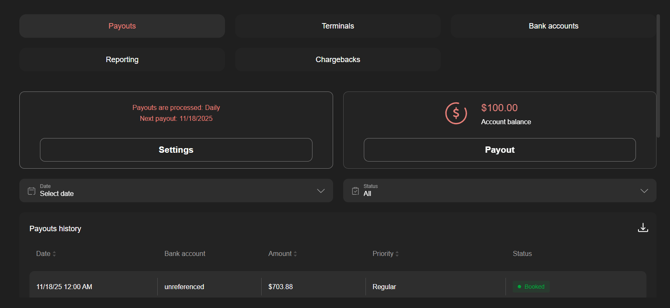
The term payout is synonymous with deposit. A payout is a deposit into your Bank Account of your choosing. This can be set on an automated schedule, or you can initiate an instant payout and receive the requested funds on the same day.
Within Payouts is where you can set up automated payout schedule, initiate instant payouts, view and download your payout reports.
**Settings:**
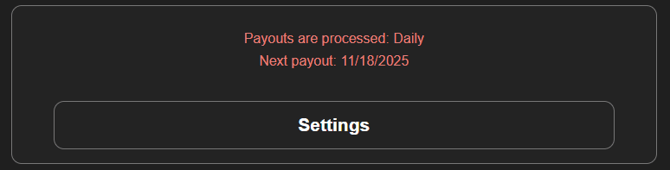
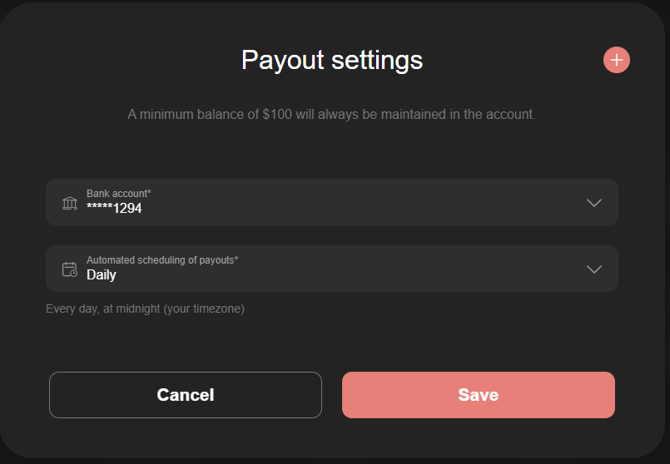
In Payout settings is where you will choose the Bank Account and the Schedule for your payouts.
You have the option to send Payouts on Daily / Weekly (Tue&Fri) / Weekly / BiWeekly / Monthly / No automatic payout.
**Payout:**
This section gives you the control to manually initiate payouts on your own schedule
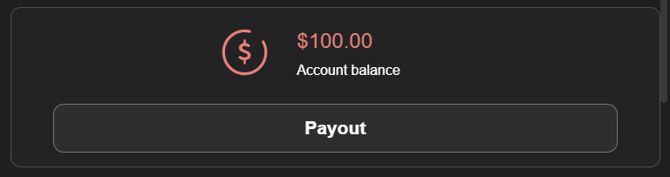
You will first choose the Bank Account you want to Payout into.
To Finalize payout you will choose priority Regular or Instant and enter in the amount of money you want to move into your Bank Account.
**Instant** moves the money on the same day. An instant payout comes with an additional fee of 1.75% of the amount being moved. This fee will be no less than .25 cents
**Payouts History**
The bottom of the Payouts window is the Payout History. For every Payout processed a report is generated.
Payouts occur on a **T+2** model. That is Transaction + 2 days and the money will be available to be paid out.
The Payout total will not match your sales total. At the moment the transaction takes place. The agreed upon processing rates are split from the transaction.
The Payout total is your Sales Total - Processing Rates (% of sale + $ per transaction)
---
### **Reporting**
Admin \> Card Processing \> Reporting
The Reporting window is where you can download automated reports. Here you will find your Payout reports in a downloadable format.
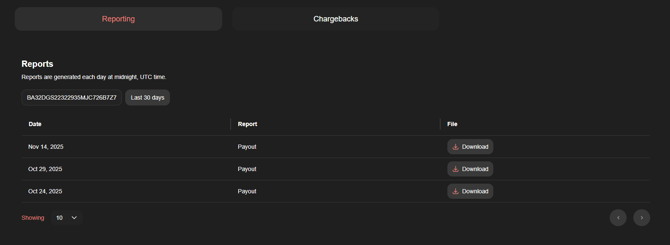
Reconcile Credit Card sales between the app and the amount deposited into your bank account using Payout Reports on a daily basis.
---
### **Bank Accounts**
**Admin \> Card Processing \> Bank accounts**
As a part of the KYC you entered in the information of one Bank Account. This account is available to Payout into the moment you start using the application.
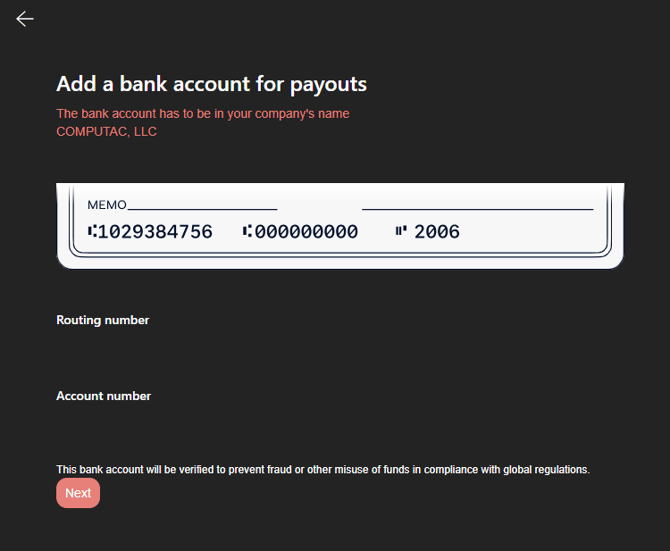
If you would like to add another bank account you can do so from within the application within the Bank Accounts window
To add another account click on the + button in the upper right

If you have 2FA set up for the Admin and Manager accounts you will be prompted to enter the Security Code texted to the phone attached to the account.
To set up [2FA](https://bit.ly/4om0leN)
Follow the prompts to add another Bank Account. A warning will appear that the account has to be in your company's name
---
### **Terminals**
**Admin \> Card Processing \> Terminals**
Within Terminals you can find and filter all Terminals assigned to your store(s)
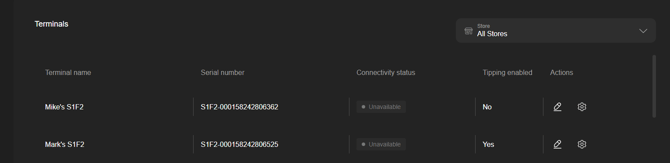
To Order Card Readers go to [imrchnt.com](http://imrchnt.com) under the Hardware tab to request a quote or email us directly at [support@imrchnt.com](mailto:support@imrchnt.com)
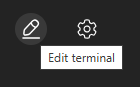
Here you can assign a terminal name by clicking on the Pencil icon to Edit Terminal
Or you can enable Tipping by terminal by clicking on the Gear icon
For more on setting up [Tipping](https://bit.ly/4rdQnib)
---
### **Chargebacks**
Get notified and dispute Chargebacks in app
- [FAQs](https://help.imrchnt.com/faqs?hsLang=en#main-content)
- [Reports](https://help.imrchnt.com/faqs?hsLang=en#reports)
- [App](https://help.imrchnt.com/faqs?hsLang=en#app)
- [Getting started](https://help.imrchnt.com/getting-started?hsLang=en#main-content)
- [Store](https://help.imrchnt.com/getting-started?hsLang=en#store)
- [Card Processing](https://help.imrchnt.com/getting-started?hsLang=en#card-processing)
- [Imports](https://help.imrchnt.com/getting-started?hsLang=en#imports)
- [Exports](https://help.imrchnt.com/getting-started?hsLang=en#exports)
- [Troubleshooting](https://help.imrchnt.com/troubleshooting?hsLang=en#main-content)
- [Card Reader](https://help.imrchnt.com/troubleshooting?hsLang=en#card-reader)
- [Web App](https://help.imrchnt.com/troubleshooting?hsLang=en#web-app)
- [General](https://help.imrchnt.com/general?hsLang=en#main-content)
- [Users](https://help.imrchnt.com/general?hsLang=en#users)
- [Point of Sale](https://help.imrchnt.com/general?hsLang=en#point-of-sale)
- [Release Notes](https://help.imrchnt.com/general?hsLang=en#release-notes)
- [Legacy imrchnt](https://help.imrchnt.com/legacy-imrchnt?hsLang=en#main-content)
- [Releases](https://help.imrchnt.com/legacy-imrchnt?hsLang=en#releases)
- [Labels](https://help.imrchnt.com/legacy-imrchnt?hsLang=en#labels)
- [Gift Cards](https://help.imrchnt.com/legacy-imrchnt?hsLang=en#gift-cards)
- [Imports](https://help.imrchnt.com/legacy-imrchnt?hsLang=en#imports)
- [Credit Cards](https://help.imrchnt.com/legacy-imrchnt?hsLang=en#credit-cards)
- [Properties](https://help.imrchnt.com/legacy-imrchnt?hsLang=en#properties)
- [Internal](https://help.imrchnt.com/internal?hsLang=en#main-content)
- [AWS](https://help.imrchnt.com/internal?hsLang=en#aws)
- [iOS](https://help.imrchnt.com/internal?hsLang=en#ios)
- [Card Readers](https://help.imrchnt.com/card-readers?hsLang=en#main-content)
- [Tips](https://help.imrchnt.com/card-readers?hsLang=en#tips)
- [Maintenance](https://help.imrchnt.com/card-readers?hsLang=en#maintenance)
- [Newsletter](https://help.imrchnt.com/newsletter?hsLang=en#main-content)
- [2025](https://help.imrchnt.com/newsletter?hsLang=en#2025)
- [2026](https://help.imrchnt.com/newsletter?hsLang=en#2026)
- [Demo](https://help.imrchnt.com/demo?hsLang=en#main-content)
- [Card Reader](https://help.imrchnt.com/demo?hsLang=en#card-reader)
- [Releases](https://help.imrchnt.com/releases?hsLang=en)
[](https://help.imrchnt.com/?hsLang=en)
[mailto:email@email.com](mailto:email@email.com)
Copyright © 2026, Computac LLC