---
title: AWS - Change Instance Type
description: article about resizing an EC2 instance in AWS and deactivate Lamda - auto restart job
---
[Skip to content](https://help.imrchnt.com/aws-change-instance-type#main-content)
English
Show submenu for translations

Open main navigation
Close main navigation
- English
Show submenu for translations
- Contact us
Contact us
How can we help you?
- There are no suggestions because the search field is empty.
1. [imrchnt knowledge base](https://help.imrchnt.com/?hsLang=en)
2. [Internal](https://help.imrchnt.com/internal?hsLang=en)
3. [AWS](https://help.imrchnt.com/internal?hsLang=en#aws)
# AWS - Change Instance Type
## This is quick guide on how to resize an AWS EC2 Instance \*\*\* THIS IS AFTER HOURS WORK ONLY \*\*\*
This will be done mid-november leading up to the Holiday rush, then done again in mid-January after the holidays.
The first step in resizing an instance in our AWS environment is to disable the Lamda job that automatically restarts a server once it has entered a stopped state.
Put a # in front of the server to comment out that line, and deploy the code.
Now go to AWS \> EC2 and stop the instance you are looking to resize.
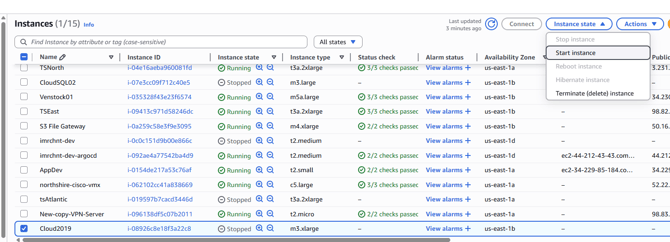
Check the box next to the instance, click on Instance State and select Stop Instance

Once the instance is stopped you can resize it under Actions \> Instance Settings \> Change Instance Type.
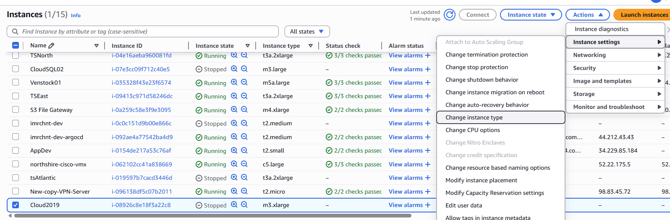
Within Change Instance Type is where you will set the Instance type.
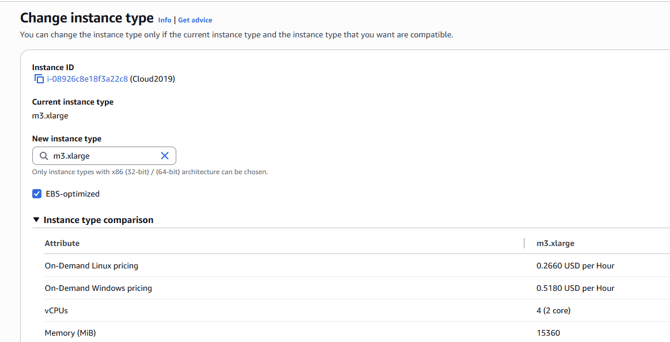
Enter the new instance type in the New instance type field (e.g. m3.xlarge).
Scroll down and click on Change Instance Type button.

Restart the Instance (Instance state \> Start Instance) and it will come back up as the new instance type.
Verify that the server has come back up properly by logging onto the server you've updated.
Final step is to go back into Lambda remove the # and deploy the change to enable the server to autostart when in a stopped state.
- [FAQs](https://help.imrchnt.com/faqs?hsLang=en#main-content)
- [Reports](https://help.imrchnt.com/faqs?hsLang=en#reports)
- [App](https://help.imrchnt.com/faqs?hsLang=en#app)
- [Getting started](https://help.imrchnt.com/getting-started?hsLang=en#main-content)
- [Store](https://help.imrchnt.com/getting-started?hsLang=en#store)
- [Card Processing](https://help.imrchnt.com/getting-started?hsLang=en#card-processing)
- [Imports](https://help.imrchnt.com/getting-started?hsLang=en#imports)
- [Exports](https://help.imrchnt.com/getting-started?hsLang=en#exports)
- [Troubleshooting](https://help.imrchnt.com/troubleshooting?hsLang=en#main-content)
- [Card Reader](https://help.imrchnt.com/troubleshooting?hsLang=en#card-reader)
- [Web App](https://help.imrchnt.com/troubleshooting?hsLang=en#web-app)
- [General](https://help.imrchnt.com/general?hsLang=en#main-content)
- [Users](https://help.imrchnt.com/general?hsLang=en#users)
- [Point of Sale](https://help.imrchnt.com/general?hsLang=en#point-of-sale)
- [Release Notes](https://help.imrchnt.com/general?hsLang=en#release-notes)
- [Legacy imrchnt](https://help.imrchnt.com/legacy-imrchnt?hsLang=en#main-content)
- [Releases](https://help.imrchnt.com/legacy-imrchnt?hsLang=en#releases)
- [Labels](https://help.imrchnt.com/legacy-imrchnt?hsLang=en#labels)
- [Gift Cards](https://help.imrchnt.com/legacy-imrchnt?hsLang=en#gift-cards)
- [Imports](https://help.imrchnt.com/legacy-imrchnt?hsLang=en#imports)
- [Credit Cards](https://help.imrchnt.com/legacy-imrchnt?hsLang=en#credit-cards)
- [Properties](https://help.imrchnt.com/legacy-imrchnt?hsLang=en#properties)
- [Internal](https://help.imrchnt.com/internal?hsLang=en#main-content)
- [AWS](https://help.imrchnt.com/internal?hsLang=en#aws)
- [iOS](https://help.imrchnt.com/internal?hsLang=en#ios)
- [Card Readers](https://help.imrchnt.com/card-readers?hsLang=en#main-content)
- [Tips](https://help.imrchnt.com/card-readers?hsLang=en#tips)
- [Maintenance](https://help.imrchnt.com/card-readers?hsLang=en#maintenance)
- [Newsletter](https://help.imrchnt.com/newsletter?hsLang=en#main-content)
- [2025](https://help.imrchnt.com/newsletter?hsLang=en#2025)
- [2026](https://help.imrchnt.com/newsletter?hsLang=en#2026)
- [Demo](https://help.imrchnt.com/demo?hsLang=en#main-content)
- [Card Reader](https://help.imrchnt.com/demo?hsLang=en#card-reader)
- [Releases](https://help.imrchnt.com/releases?hsLang=en)
[](https://help.imrchnt.com/?hsLang=en)
[mailto:email@email.com](mailto:email@email.com)
Copyright © 2026, Computac LLC
```json
{
"@context" : "https://schema.org",
"@type" : "VideoObject",
"contentUrl" : "https://243943054.fs1.hubspotusercontent-na2.net/hubfs/243943054/disable%20lambda.mp4",
"dateModified" : "2025-11-14T16:58:06.176Z",
"duration" : "PT54S",
"height" : 908,
"name" : "disable lambda",
"thumbnailUrl" : "https://243943054.fs1.hubspotusercontent-na2.net/hubfs/243943054/disable%20lambda.mp4/medium.jpg",
"uploadDate" : "2025-11-14T16:57:55.189Z",
"width" : 1918
}
```